Get Started
Welcome to block.λ
block.λ aims to be the all-in-one platform to discover, backtest, and copy profitable wallets, with optimal fee, execution, and slippage management. We provide advanced analytics services on the blockchain:
Find wallets worth copying while accounting for your slippage and that of competing snipers on the same tokens.
Test strategies as complex as you like and estimate the PnL you would have had by copying a given wallet with specific filters and sizing.
Our bot decodes raw shred streams before blocks are even finalized by the leader. Transactions are submitted from servers worldwide so the fastest path reaches the leader without crossing oceans — you land ahead of most other snipers.
Understand your slippage and fee spend, and identify recurring competing snipers on your copied wallets — including how much they pay in fees — so you can tune your own fees and consistently arrive first.
Our values

Quantitative approach
We are committed to teaching members how to build profitable strategies while avoiding traps. That includes core market-finance principles: statistically unbiased backtesting, diversification, optimal fee management, and rigorous analysis of execution and slippage.

No absurd promises
We are not another “course” that promises €15k a month and obviously delivers nothing. There is no easy money. We give you very advanced analysis tools and an ultra-low-fee bot, plus guidance to research, analyze, and avoid traps, so you can maximize your PnL. That is as far as we can go; the rest is up to you.

24/7 monitored infrastructure — Ultra-fast support
Our infrastructure is monitored by dozens of sensors: latency, execution speed, RAM/CPU on our servers across four continents, on-chain execution errors, and more. We have audible alarms the moment anything goes wrong, and we resolve issues you encounter using the bot as fast as humanly possible.
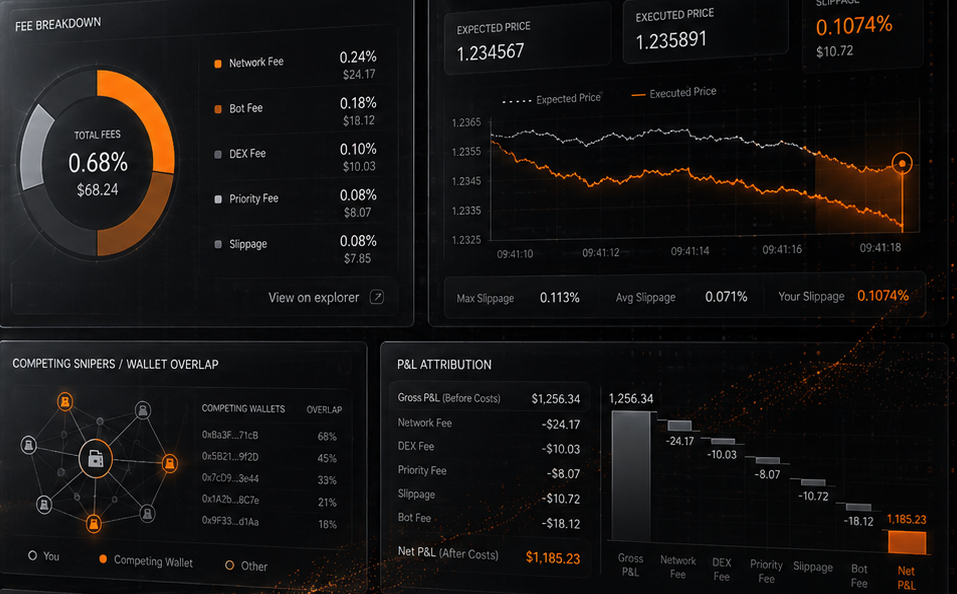
Total transparency on fees
We give you all the statistics others withhold: an exact breakdown of fees, your slippage, competing snipers on the same wallets you copy, and more. Every cent of your PnL should be explained. Our fees are among the lowest of Solana trading bots. About 2× cheaper than GMGN, Axiom, and Tradewiz. For rug sniping, 8× cheaper than Fproject!
Next steps
Get Started
Quick Start
From signup to your first Start: light prerequisites, then follow the steps in order.
Prerequisites
- A block.λ account on any plan
- Capital to deploy: 1–2 SOL is usually enough to get started
- No wallet required upfront — we create one for you at signup. You can later import your own wallets and assign specific strategies to them
Setup steps
Create your account
Create your account and pick your plan. Go to blocklambda.com/signup — you can change plans later if needed.
Complete onboarding
Finish onboarding: you’ll be prompted to link your Telegram account for notifications.
Fund your wallet
Send the amount you want to trade to your trading wallet. In most cases, 1–2 SOL is enough to begin.
Strategy or discovery
Create your first strategy, or browse copyable wallets and backtest them to estimate the PnL you would have had by following them.
Go live
When you’re ready with one or more strategies, press Start. Track PnL live on the dashboard, or get updates on Telegram when you’re away from the screen.
Reading your first trade
Once the strategy is live the dashboard shows real-time stats for each trade:
| Field | Meaning |
|---|---|
| Detection latency | Time from shred signal to transaction construction |
| Broadcast time | Time until all 6 nodes confirm dispatch |
| Slot delta | How many Solana slots after the original trade your copy landed |
| Fill price | Actual on-chain execution price |
| Slippage | % deviation from expected fill |
Continue in the docs
→ Plans & Pricing
Discover / Sniper / Pro tiers and per-transaction fees.
→ Trading Setup
Wallets, strategies, and position management.
→ Copy trading — overview
Shred streams, infrastructure, filters, and multi-region execution.
→ Strategies
How block.λ splits trading into strategies you can start, pause, and stop.
→ Strategy terminal
Live dashboard, PnL, positions, and transactions.
→ PnL cards
Shareable, verifiable cards from realized sells — including anonymous Discord posts.
→ Notifications
Telegram and in-app alerts for your strategies.
Billing
Plans & Pricing
You choose an activity — rug sniping or copy trading — and a tier. The tables below compare Discover, Sniper, and Pro for each activity. Subscription prices in SOL for every tier are on the homepage and at checkout.
Plan comparison
Rug sniping
Three tiers: Discover, Sniper, and Pro. All plans include the full rug sniping bot (snipe creation block 0, automatic transfer follow). Sniper and Pro add multi-location bot deployment and richer data.
| Feature | Discover | Sniper | Pro |
|---|---|---|---|
| Trading bot & infrastructure | Fast copy trading bot, shred streams enabled | Ultra-Fast; shred streams + 5 bot replications across 3 continents | Ultra-Fast; shred streams + 5 bot replications across 3 continents |
| Rug sniping bot features | ✓ Snipe creation block 0, automatic transfer follow, and more | ✓ Snipe creation block 0, automatic transfer follow, and more | ✓ Snipe creation block 0, automatic transfer follow, and more |
| AFTS watchlist size (per strategy) | 50 wallets | 1,000 wallets | 5,000 wallets |
| AFTS transfers followed per hour (per strategy) | 100 | 1,000 | 3,000 |
| Transaction fee | 0.9% / tx | 0.5% / tx (-40% vs Discover) | 0.35% / tx (-60% vs Discover) |
| Rug list & history | Last 2 hours, no sortable metrics | Last 24 hours, sort & filter by metrics (ATH, perf., bundle, etc.) | All history since Jan. 26, sort & filter by metrics (ATH, perf., bundle, etc.) |
| Backtesting & wallet rankings | ✕ No access | $1/1K txs · last 24h best wallet rankings by copiability | $0.5/1K txs · full wallet ranking history by copiability |
| Backtesting credit included | ✕ | $50 | $200 |
| Support | Discord community chat | 1-to-1 dedicated Discord chat support | 1-to-1 ultra-fast dedicated Discord chat support (text or voice, 7/7, 18h/24) |
| Engineer / coaching calls | ✕ | ✓ 1 private call (30 min) | ✓ 1-to-1 coaching sessions to help build rugger-detection strategies, wallet-pattern analysis, and more |
| Custom strategy by our team | ✕ | ✕ | ✓ |
Copy trading
Three tiers: Discover (Bot only), Sniper, and Pro. Sniper and Pro add global bot replication, richer analytics, backtesting, and dedicated Discord support. Pro unlocks advanced data, coaching calls, and custom strategy implementation.
| Feature | Discover (Bot only) | Sniper | Pro |
|---|---|---|---|
| Copy trading bot & infrastructure | Fast copy trading bot; shred streams enabled | Ultra-Fast; shred streams + 5 bot replications across 3 continents | Ultra-Fast; shred streams + 5 bot replications across 3 continents |
| PnL, charts & stats | Simple PnL breakdown, live charts, fee decomposition | Detailed PnL with execution and other copiers statistics | Detailed PnL with execution and other copiers statistics |
| Transaction fee | 0.9% / tx | 0.5% / tx (-40% vs Discover) | 0.35% / tx (-30% vs Sniper) |
| Backtesting & wallet rankings | ✕ No access | $1/1K txs · last 24h best wallet rankings by copiability (incl. simulated slippage) $50 credit included |
$0.5/1K txs · full wallet ranking history by copiability $200 credit included |
| Support | Discord community chat | 1-to-1 dedicated Discord chat support | Ultra reactive 1-to-1 dedicated Discord support (7/7, 18h/24) |
| Engineer / coaching calls | ✕ | ✓ 1 private call w/ our Solana engineers (30 min) | ✓ 4 calls/month — hands-on guidance to build, execute, and monitor your own strategy from scratch |
| Custom strategy by our team | ✕ | ✕ | ✓ Pricing is discretionary |
Transaction fees
A per-transaction fee applies to all copy trades and rug snipes, on top of your subscription. The rate depends on your plan tier (rug sniping and copy trading use the same tier names):
| Plan | Fee (of transaction amount) |
|---|---|
| Discover | 0.9% |
| Sniper | 0.5% |
| Pro | 0.35% |
On top of the percentage above:
- Minimum $0.15 per transaction
- Does not include your Solana priority fees or Jito tips
Pro’s 0.35% is among the lowest in the Solana bot market. Gmgn / Axiom often charge around ~1%, and flat-per-trade tools can be far higher in percentage on smaller sizes (e.g. a flat $2 fee is 4% on a $50 trade).
FAQ
Can I upgrade mid-month?
Yes. Upgrades take effect immediately and are charged pro-rata for the remainder of the billing period.
What payment methods are accepted?
Plans are paid in SOL. Prices are displayed in both SOL and USD (converted at the current market rate, refreshed every second).
Copy Trading
Copy Trading
Automatically replicate on-chain trades with a consistent execution edge — powered by shred-stream access, colocated bare-metal infrastructure, and 6 geographically distributed sending nodes.
How copy trading works
block.λ monitors the Solana shred stream — raw transaction data gossiped by validators as they build blocks. When a buy signal from a tracked wallet appears in the stream, the system immediately:
- Parses the incoming shred for the relevant token and amount.
- Constructs and signs your mirrored transaction.
- Broadcasts from all 6 geographically distributed nodes simultaneously.
This pipeline runs entirely in-memory on bare-metal servers colocated with Solana validators.
Shred Streams
Standard copy bots wait for a transaction to be confirmed on-chain before reacting — by then the market has moved. block.λ operates on raw shred data: unconfirmed fragments gossiped before a block is finalized, arriving ~200ms earlier.
What are shreds?
In Solana, a shred is a fragment of an in-progress block produced by the current slot leader. Validators gossip shreds to each other as they build the block — well before it is finalized and confirmed by the rest of the network. By connecting directly to this gossip layer, block.λ observes transaction data approximately 200ms earlier than an observer waiting for block confirmation.
Signal detection pipeline
- Receive shreds via UDP from nearby validators.
- Reconstruct partial block data from shred fragments.
- Parse instructions to identify buy transactions for monitored wallets.
- Dispatch your copy transaction immediately upon match.
The entire process from shred receipt to transaction dispatch runs in <5ms on our infrastructure.
Jito and standard nodes
block.λ broadcasts to both Jito block engines and standard Solana RPC nodes simultaneously:
- Jito — preferred when the current leader is Jito-enabled; provides MEV bundle priority and faster inclusion.
- Standard nodes — parallel path ensuring coverage when the leader is a non-Jito validator.
Multi-Geography Broadcasting
The Solana slot leader changes every ~400ms and can be located anywhere on Earth. Network latency between the submitting node and the current leader can add 50–200ms to your inclusion time — equivalent to missing one to four slot transitions.
Sending nodes
| Location | Region | Primary targets |
|---|---|---|
| Amsterdam | Europe West | EU validators, Hetzner cluster |
| Frankfurt | Europe Central | DE validators, AWS eu-central |
| London | Europe North | UK validators, transatlantic path |
| Ashburn, VA | North America East | US East validators, Equinix DC10 |
| Singapore | Asia Pacific | APAC validators |
| Tokyo Soon | Asia East | JP validators |
Replicated execution
The bot runs independently on each of the 6 nodes. Every node detects the signal from its local shred stream connection and submits the transaction to its nearest validator peers autonomously — no cross-node coordination is needed. Whichever node is closest to the current slot leader achieves earliest inclusion, typically reducing worst-case inclusion latency by 40–60% compared to single-region execution.
Colocation & Infrastructure
block.λ infrastructure runs in the same physical data centers as most Solana validators, providing sub-millisecond signal paths. Network latency has two components: transmission delay (the speed of light over fiber) and switching/routing delay (hops through intermediate routers). By colocating in the same facility, routing delay is eliminated almost entirely.
Data center hubs
The majority of Solana stake is concentrated in a handful of facilities. block.λ operates hardware directly in these hubs:
- Equinix DA11 (Dallas) — largest single concentration of Solana stake
- Hetzner Falkenstein — largest European validator cluster
- Equinix DC10 (Ashburn) — US East transit hub
- Equinix SG1 (Singapore) — APAC validators
Bare-metal vs cloud
block.λ runs on dedicated bare-metal servers, not cloud VMs. Cloud hypervisors introduce unpredictable latency spikes (1–10ms) due to CPU scheduling and NUMA effects. Bare-metal eliminates the hypervisor entirely, giving deterministic sub-millisecond processing times even under heavy load.
Filters and controls
| Parameter | Description |
|---|---|
min_sol | Minimum SOL in the original trade to trigger a copy |
max_sol | Maximum SOL to spend per copy trade |
token_blocklist | Token addresses to never copy |
slippage_bps | Maximum slippage in basis points |
Copy Trading
Execution Statistics
Real-time and historical performance metrics for every copy trade.
Available metrics
| Metric | Description |
|---|---|
| Detection latency | Time from shred signal to transaction construction (target: <5ms) |
| Broadcast time | Time until all sending nodes confirm dispatch |
| Inclusion slot | The Solana slot in which your transaction was confirmed |
| Slot delta | How many slots after the original trade your copy landed |
| Fill price | Actual execution price vs expected price |
| Slippage | Percentage deviation from expected fill |
| PnL | Unrealized and realized P&L including all fees |
Dashboard
The Execution Stats dashboard shows a live feed of all active copy positions and a sortable history of past trades. Expand any row to see the full transaction details — including per-node broadcast response times and the confirmed Solana explorer link.
Rug Sniping
Rug Sniping
A continuously updated feed of the best-performing rugs, enriched with performance metrics, bundle detection, and dev wallet flags — ready for one-click sniping at full execution speed.

What is rug sniping?
On pump.fun, hundreds of tokens are created every day. Most are near-instant rugs — tokens that spike sharply and immediately fall back. A rug sniper buys in early during the spike and sells at ATH.
The challenge is identifying the right tokens fast enough. block.λ aggregates and ranks every rug of the day so you never have to manually scan for opportunities.
The rug feed
block.λ collects and analyzes every token created on pump.fun throughout the day. The feed is:
- Refreshed every 5 minutes (Pro/Expert) or every 6 hours (Simple)
- Sortable by performance (max % ATH from creation), recency, or market cap
- Enriched with bundle detection, dev wallet flags, and MR/ATH metrics
Pro and Expert users see 250+ rugs per day, compared to the 6-hour window on Simple. More history means more snipe opportunities.
Key metrics
| Column | Meaning |
|---|---|
| ATH % | All-time-high price as a % of the creation price |
| Performance | Max achievable TP if bought at creation and sold at ATH |
| Bundle | Whether the launch included bundled transactions (dev snipe signal) |
| Dev wallet | How many tokens the dev holds / has sold |
| MR | Market cap at ATH in SOL |
| Time to ATH | How quickly the token reached its ATH after creation |
Refresh cadence by plan
| Plan | Refresh | History window |
|---|---|---|
| Simple | Every 6 hours | Last 6 hours |
| Pro | Every hour | Full day (24h) |
| Expert | Every hour | Last 7 days |
Spotting & filtering
The Rug Sniping dashboard presents rugs in a sortable, filterable table. Each row is one token created on pump.fun and includes every metric needed to decide whether to snipe it.
Dashboard overview
Click any column header to sort. Each row expands to show the full token breakdown: on-chain pool address, creation transaction, dev wallet history, and a direct snipe button.
Sorting & filtering
Useful strategies:
- Sort by Performance ↓ — find the highest-return tokens of the day first
- Sort by Time to ATH ↑ — find fast-spike tokens ideal for quick scalps
- Filter Bundle = false — exclude dev-bundled launches (higher execution risk)
Sniping best performers
When you spot a token worth trading, click Snipe on its row. The bot will fetch the current price and liquidity from the on-chain pool, construct a buy transaction using your configured wallet and SOL amount, then broadcast simultaneously from all 6 sending nodes.
One-click snipe
- Fetch the current price and liquidity from the on-chain pool.
- Construct a buy transaction using your configured wallet and SOL amount.
- Broadcast simultaneously from all 6 sending nodes.
Understanding the performance metric
The Performance % column shows the maximum return achievable if you had bought at token creation and sold at ATH. It is a historical measure of how aggressively the token spiked.
High-performance tokens tend to repeat similar spike patterns from the same dev wallet. Expert plan subscribers have access to the backtracker bot, which automatically analyses a dev wallet's launch history on Solscan to identify serial high-performing launchers.
Combine high performance + low time to ATH + bundle = false to filter for the cleanest snipe candidates.
Auto-Follow Wallets
Sophisticated traders frequently rotate wallets to avoid being tracked. The auto-follow feature monitors a source wallet for outgoing SOL transfers and automatically adds the destination wallet to your copy trading watchlist.
How auto-follow works
When a tracked wallet sends SOL above the configured threshold to a new address, block.λ immediately adds that destination to your watchlist — or starts copying immediately if auto_trade is enabled. This ensures you never lose a trader just because they switched wallets.
Configuration parameters
| Parameter | Description |
|---|---|
min_transfer_sol | Minimum transfer size to trigger an auto-follow (avoids dust noise) |
max_transfer_sol | Upper bound — ignores large wallet-consolidation transfers |
auto_trade | Immediately copy the new wallet, or only add to watchlist for manual review |
Rug Sniping
Auto-Follow Transfer System
AFTS automatically tracks SOL transfers from followed wallets and promotes receiver wallets into your watch list — so you never lose a trader who switches to a fresh burner address.
The Auto-Follow Transfer System is exclusive to the Rug Sniping strategy template. It does not appear in Full Copy Trading strategies.
Why AFTS matters
Experienced ruggers and active on-chain traders routinely rotate wallets to stay ahead of trackers. When a known wallet bridges its funds to a new address, any copy strategy locked to the old wallet goes silent — just as the next token launch begins.
AFTS solves this by monitoring outgoing SOL transfers from every wallet in your watch list. When a transfer meets your configured rules, the destination wallet is immediately promoted into your active watch list, and your strategy follows the next launch without any manual intervention.
A built-in replay system catches transfers that the initial gRPC stream scan may have missed by replaying the blockchain approximately 2 seconds back in time. This ensures that absolutely NO transfer can be missed, even a very fast chain of 100 transfers in 2 seconds.
Enabling and disabling AFTS
The toggle at the top of the section switches AFTS on or off for the strategy. It is enabled by default on all new Rug Sniping strategies.
When AFTS is disabled, the bot does not add any receiver wallets to the watch list regardless of incoming transfers. The only reason to disable it is when you intentionally follow a wallet that repeatedly launches from the same fixed address — in that case the watch list is already complete and automatic additions are not needed.
Turning AFTS off resets the transfer-range list. If you re-enable it later, you will need to re-add any custom ranges.
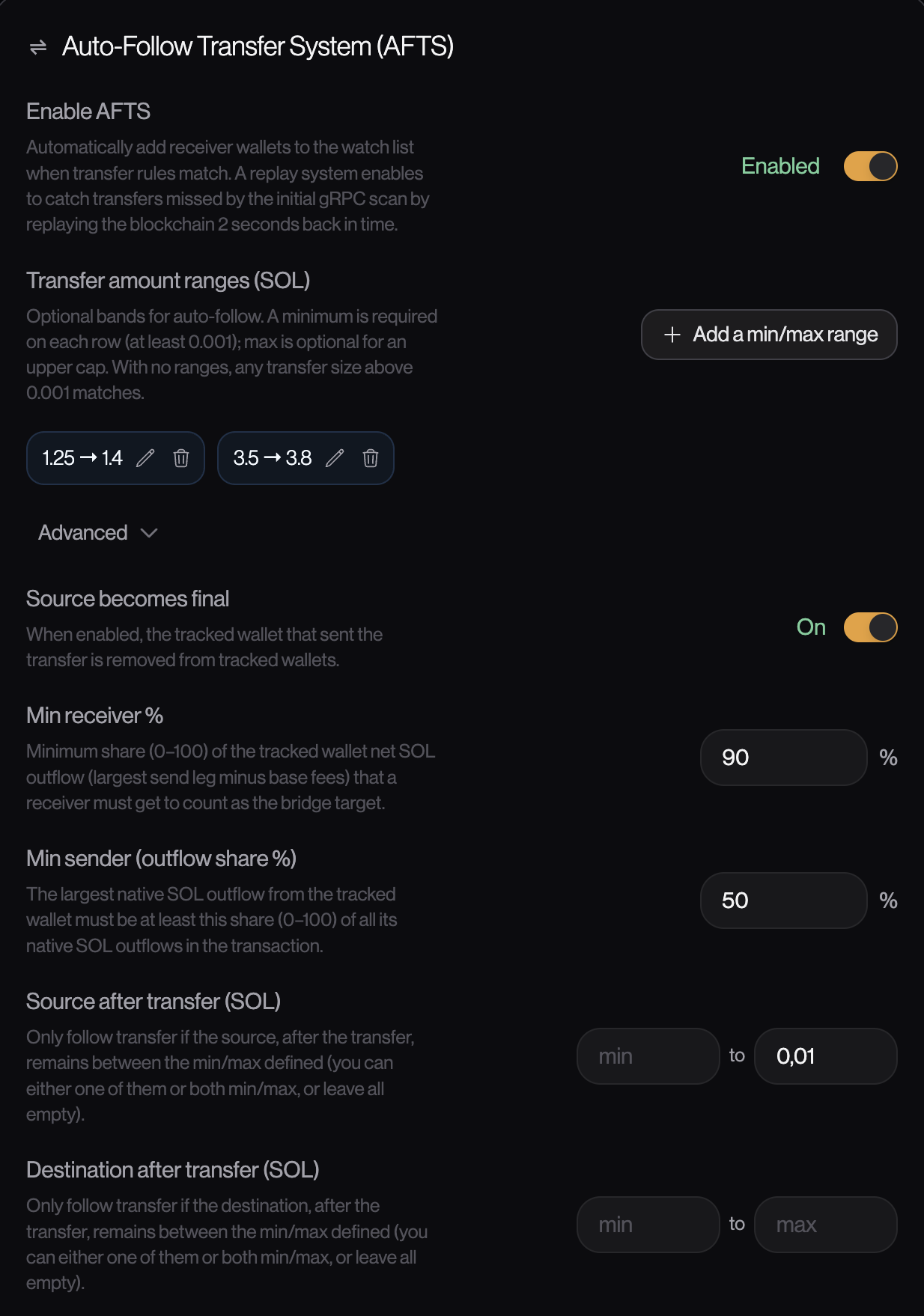
Transfer amount ranges (SOL)
Ranges are the primary filter that decides which SOL transfers trigger an auto-follow. Each range has a minimum and an optional maximum expressed in SOL.
- Minimum value per range must be at least 0.001 SOL.
- Maximum is optional. Omit it to capture everything above the minimum with no upper cap.
- You can add multiple ranges. A transfer is accepted if it falls within any one of them.
- If no ranges are defined, any transfer above 0.001 SOL matches — equivalent to "all transfers".
No ranges defined
All SOL transfers above the 0.001 minimum trigger an auto-follow.
transfers: any amount
Use this when the trader could bridge any amount. Good for early-stage setups where you do not yet know the typical bridge size.
Single range with cap
You set min 0.5 SOL / max 3.5 SOL. Only transfers inside that band trigger a follow.
0.3 SOL transfer: ignored
2.1 SOL transfer: followed
3.9 SOL transfer: ignored
Useful when you know the rugger's typical bridge size and want to ignore dust sends or bridges that are unusually large for a quick rotation.
Multiple ranges
You add 0.2–1.2 SOL and 1.5–3.8 SOL. Small top-ups and mid-size bridges are followed; everything outside those bands is ignored.
range B: 1.5 SOL → 3.8 SOL
0.8 SOL transfer: followed (A)
1.3 SOL transfer: ignored
2.4 SOL transfer: followed (B)
When a trader uses different bridge sizes for different launch types, you can cover both without opening the gate to all amounts.
Watchlist rotation
Below the transfer ranges — and outside the collapsible Advanced block — the form always shows Remove source after transfer and, when that option is on, Wallet always kept. These control how the watch list evolves after each successful auto-follow.
Remove source after transfer (default: on)
When enabled, the tracked wallet that sent the transfer is automatically removed from the watch list after the follow is triggered.
This is the critical mechanism for "wallet rotation" following. The logic is: if a rugger just moved all their SOL to a new address, the old address will likely never launch again. Keeping it in the list wastes a slot and adds noise. By removing the source wallet automatically, the watch list always reflects the most current operative addresses.
For mother wallets that keep distributing SOL while staying active, leave Remove source after transfer on and list those addresses under Wallet always kept (see below). Only disable remove source if you want no source ever removed — every bridge then leaves the sender on the list, which fills the watchlist quickly.
Wallet always kept
When Remove source after transfer is on (default), the strategy form shows Wallet always kept. Add addresses that must never be removed from your watchlist after they send a qualifying transfer.
This is the recommended way to track mother-wallet schemes: the main funding wallet stays on the list while AFTS still rotates disposable bridge wallets out and adds new receivers.
- Each always-kept address must also be in Wallets to Follow. The form rejects saves if an entry is missing from the followed list.
- When an always-kept wallet sends a transfer that passes your AFTS rules, the receiver is added as usual and the source is not removed. Any other followed wallet that is not in the always-kept list is removed after the follow, as usual.
- On the strategy Summary, always-kept wallets appear first in the watchlist and show a green bookmark icon (Always tracked).
Mother wallet stays, rotation continues
You follow mother wallet M and several disposable bridge wallets. M is listed under Wallet always kept. M bridges 2 SOL to a fresh address B that matches your ranges.
wallets always kept: M
transfer: M → B (2 SOL)
B joins the watchlist; M stays so you can keep catching the next distribution. A non-exception bridge wallet would have been removed instead. Later, if B bridges to another disposable wallet C, B is removed and C is added — normal rotation for wallets that are not always kept.
Restrict bridge emitters
When this switch is off, every followed wallet may emit a new AFTS follow. When it is on, only addresses in the Bridge emitters allow-list can expand the watchlist. Other watched wallets stay copy-traded; they simply cannot add receivers.
Use this when you want one hop after a known source — for example a CEX or mixer deposit wallet. Put that source (and only that source) on the allow-list: AFTS will follow the first receiver, then stop walking the chain. Without the restriction, each new receiver can emit the next bridge and the watchlist fills.
Advanced filter settings
The Advanced section is collapsed by default. It exposes the percentage and post-transfer balance filters that distinguish genuine bridges from incidental sends, plus optional conditions for when a source is actually removed.
Min receiver % (default: 90%)
The minimum share of the tracked wallet's net SOL outflow that a single receiver must collect to be considered the bridge target.
Net outflow is calculated as the largest send leg from the tracked wallet in the transaction, minus base transaction fees. A receiver that gets less than this percentage of that net outflow is not added to the watch list.
Default: 90%
A tracked wallet sends 5 SOL net in one transaction, split: 4.6 SOL to address A and 0.4 SOL to address B.
0.4 / 5 = 8% → address B ignored
This prevents dust or fee-like sends to secondary addresses from polluting the watch list.
Strict threshold: 95%
Same transaction: 4.6 SOL to address A and 0.4 SOL to address B, but min receiver is set to 95%.
4.6 / 5 = 92% (address A)
0.4 / 5 = 8% (address B)
Address A’s share is not > 95% of the sent outflow, so the primary receiver is not added to the watch list. Tightening min receiver % reduces false follows when you only want to catch near-total bridges.
Min sender outflow share % (default: 50%)
This setting matters when several wallets send in one transaction. If your tracked wallet is among them but does not have a huge part of the sent outflow compared to the others, you may want to discard the transaction for adding a new wallet.
The largest native SOL outflow from the tracked wallet in the transaction must represent at least this percentage of all its native SOL outflows in that same transaction.
This also guards against cases where the tracked wallet splits SOL across many destinations in one tx: no single send leg dominates its own total outflow, so the transaction is unlikely to be a clean bridge — it looks more like a fee sweep or fan-out distribution.
Single dominant send
Your tracked wallet sends 3.2 SOL to one address and nothing else in the same transaction.
total outflow = 3.2 SOL
share = 100%
Typical “one leg bridge” — the filter stays out of your way.
Split sends from the tracked wallet
Same tracked wallet sends 1.0 SOL, 1.0 SOL, and 1.0 SOL to three different addresses in one transaction.
total outflow = 3.0 SOL
share = 33.3%
No single leg is a clear majority of the wallet’s own outflow, so the tx is treated as noisy fan-out rather than a decisive bridge to one new wallet.
Source after transfer (SOL)
An optional SOL balance range checked against the source wallet's balance after the transfer completes. The auto-follow is only triggered if the source's post-transfer balance falls within the configured min/max.
Last wallet transfer A common pattern is the last wallet transfer before a rotation: you only want to add receivers when the source is left with no meaningful SOL after the send — so the address is unlikely to “wake up” again for another launch. Setting a low max post-transfer balance (for example 0.05 SOL) targets that case: the wallet is effectively empty, so it probably will not recover meaningful activity before the next launch happens elsewhere.
Alternatively, set a min post-transfer balance (for example 1 SOL) when you only want to treat sends as follows if the source still holds reserves — useful to filter “top-ups” that are not a full hand-off to a new wallet. Leave both min and max empty to skip this check entirely.
Destination after transfer (SOL)
A SOL balance range checked against the destination wallet's balance after the transfer completes. The auto-follow is only triggered if the destination's post-transfer balance falls within the configured min/max.
Warning: this parameter is based on the destination (receiver) wallet balance after the transfer, not on the transfer amount.
Min is optional — leave it empty to skip a lower bound. Max defaults to 1,000 SOL in the strategy form and is hard-capped at 1,000 SOL: values above that cannot be saved.
Why a 1K SOL hard cap? Bridge amounts alone can look modest (1–5 SOL), but the destination wallet's total balance after the transfer is what matters. Exchange deposit wallets, omnibus addresses, and cold-storage style wallets belonging to CEXs or mixers (Binance, MEXC, and similar) typically sit on very large SOL balances. Without a max, AFTS could add those addresses to your watch list even though they will never launch a token. Capping post-transfer balance at 1,000 SOL filters those wallets while still following fresh addresses that plausibly hold launch funds.
Default max: 1,000 SOL
A tracked wallet bridges 2.1 SOL to a fresh destination that ends the transaction with 2.3 SOL total.
dest balance after = 2.3 SOL
max = 1,000 SOL (default)
The receiver looks like a plausible launch wallet — well under the cap.
Exchange-style destination filtered
Same bridge size (3 SOL), but the destination already held 15,000 SOL before the transfer — typical of an exchange deposit or omnibus wallet.
dest balance after = 15,003 SOL
max = 1,000 SOL
Post-transfer balance exceeds the cap, so the address is not added to your watch list.
Optional min + default max
You set min 1 SOL and keep the default max 1,000 SOL. A destination ends with 0.4 SOL after a small top-up.
min = 1 SOL
max = 1,000 SOL
Dust deliveries and failed top-ups are skipped; CEX-style wallets are still blocked by the max.
Rm source: payer / receiver post-transfer
These two optional bands appear in Advanced only when Remove source after transfer is on. They do not decide whether the receiver is followed. They decide whether the source is removed after a successful follow.
- Rm source: payer post-transfer (SOL) — remove the source only if its native SOL balance after the transfer sits inside the min/max you set (either bound optional).
- Rm source: receiver post-transfer (SOL) — remove the source only if the bridge receiver’s native SOL balance after the transfer sits inside that min/max.
Leave both empty to keep the default: every successful follow removes the source (unless it is in Wallet always kept).
Typical use case: this option lets you follow a dynamic mother-wallet scheme — a mother that changes over time. Imagine a mother wallet M that sends many transfers to burner wallets: you do not want to remove that mother from the watchlist as long as it still holds SOL, because it can still create more burners. In that case, set Rm source: payer post-transfer max = 0, which means: “only remove this mother wallet from the watchlist when it has no SOL left” — and is therefore unlikely to create more burners (unless it receives SOL later). You can then drop burners from the watchlist so it does not fill up, while still keeping mother wallets that rotate over time.
How it reads on the strategy page
On a running strategy, the Summary card’s right column lists followed wallets (always-kept entries first, with a bookmark when applicable) and, below the divider, a compact AFTS panel: on/off, configured SOL bands, min receiver, min outflow, remove source, and any post-transfer bands you set.
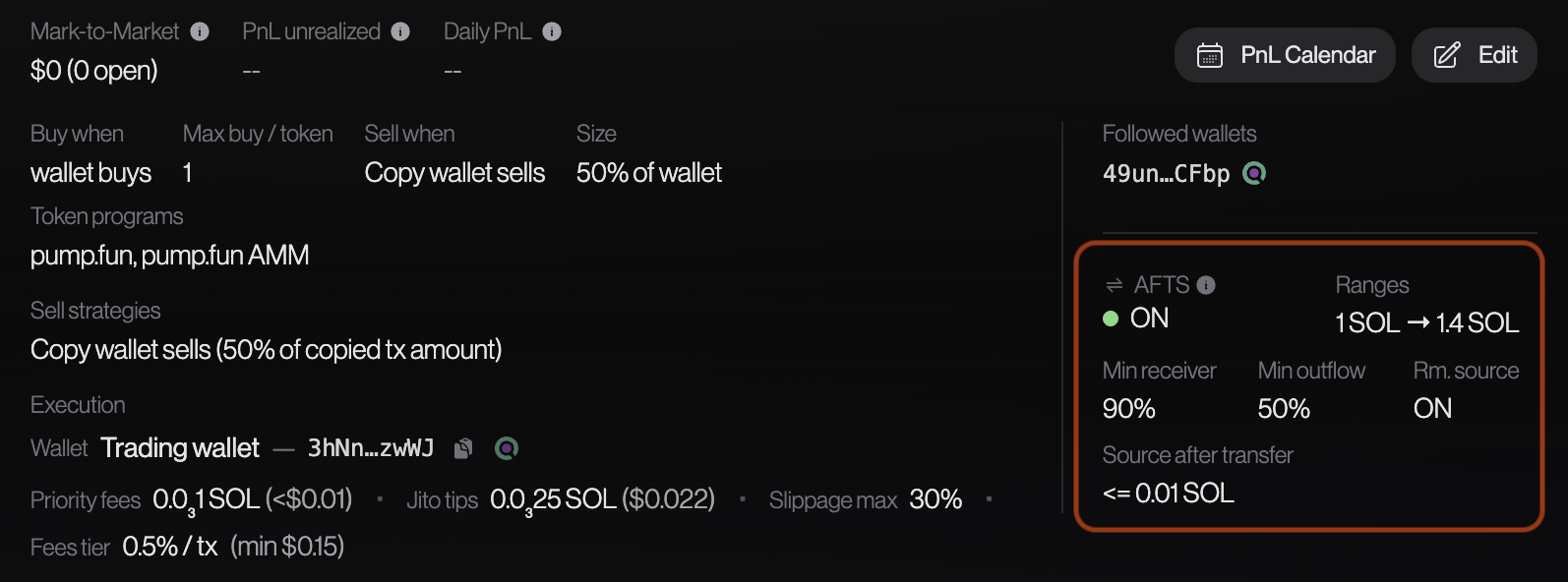
Typical configurations
Minimal setup
AFTS enabled, no ranges, all advanced fields at defaults. Any transfer above 0.001 SOL from a watched wallet adds the receiver and removes the source.
min outflow: 50%
remove source after transfer: ON
dest after transfer max: 1,000 SOL
ranges: All
Good starting point for a newly discovered rugger whose bridge patterns are not yet known.
Targeted bridge size
AFTS enabled with a 1.2–3.5 SOL band. The rugger is known to bridge small amounts to each new launch wallet; transfers outside that band are ignored.
remove source after transfer: ON
dest after transfer min: 0.5 SOL
dest after transfer max: 1,000 SOL
Reduces false follows while still catching the typical bridge before a new launch.
Near-drain confirmation
AFTS is configured to only follow when the source has less than 0.1 SOL left after the transfer — a near-certain wallet retirement signal — and the bridge itself sits in a realistic sub-4 SOL band.
source after transfer max: 0.1 SOL
remove source after transfer: ON
Ideal when you want confirmation that the source is being fully retired before automatically following the destination.
Limits
AFTS limits are based on your active Rug Sniping plan. They keep each strategy’s watchlist under control and protect the live transfer scanner during extreme wallet-rotation bursts. Higher tiers increase both the number of wallets you can track and the number of automatic follows AFTS can perform per hour.
| Limit | Discover | Sniper | Pro |
|---|---|---|---|
| Watchlist size (wallets) | 50 | 1,000 | 5,000 |
| Transfers followed per hour | 100 | 1,000 | 3,000 |
Limits (watchlist and rate limit) apply per strategy. There is no account-wide cap.
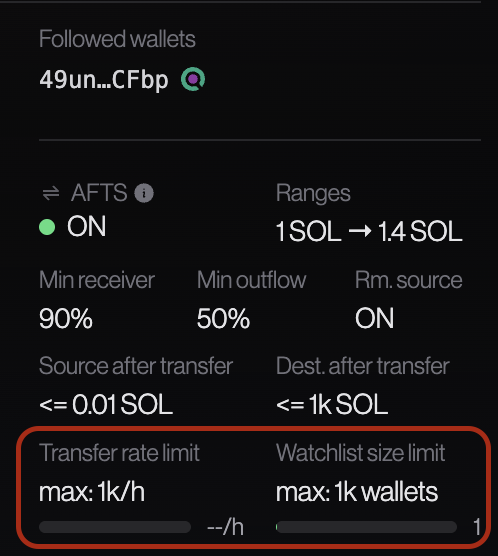
Watchlist size limit
The watchlist limit is the maximum number of wallets a strategy can monitor at the same time. It includes the wallets you entered manually in Wallets to Follow and every receiver wallet AFTS has added since the strategy started.
If the watchlist is full, AFTS stops adding new receiver wallets for that strategy. To make room again, stop the strategy, remove wallets you no longer want to track, save, and restart. The current usage is shown on the strategy Summary card while the strategy is running.
Transfer rate limit
The transfer-rate limit applies only to successful auto-follows: a transfer counts when AFTS actually adds the receiver wallet to your watchlist. The count is measured over a rolling 60-minute window, not over fixed clock hours. For example, if your plan allows 1,000 follows per hour, the system always looks at the last 60 minutes from the current moment; as older follows leave that window, capacity becomes available again automatically.
This prevents a single very fast rotation chain from consuming too much shared capacity. If the strategy reaches its hourly cap, eligible transfers are skipped until enough previous follows have aged out of the rolling window. On the strategy Summary, the Transfer rate limit row shows the current count against your plan limit, for example 842 / 1,000 per hour.
When a limit is reached
When AFTS blocks a follow because one of these limits has been reached, you receive an in-app WARNING notification, and a Telegram notification too if Telegram alerts are enabled.
Only the automatic addition of new receiver wallets is paused. The strategy itself keeps running: sniping, sells, open positions, and all other settings continue to behave normally.
- Watchlist full — AFTS resumes after you stop the strategy, reduce the watchlist below your plan limit, save, and restart.
- Transfer rate exceeded — AFTS resumes automatically once the rolling 60-minute count falls back under your plan limit.
Frequently asked questions
How many wallets can AFTS add?
AFTS-added wallets use the same pool as the addresses you entered manually in Wallets to Follow. The total is capped by your plan’s watchlist size limit. With Remove source after transfer enabled, most follows replace one wallet with another, so the total usually stays stable. Transfers from a Wallet always kept address are the exception: the receiver is added and the source remains tracked.
Very fast wallet transfers: can they be missed?
The replay system exists primarily to catch very fast chains of wallet transfers: many SOL moves can land inside a tiny time window, and the live stream can surface them faster than a human could react. By replaying roughly the last 2 seconds of chain history, the bot re-evaluates that burst against your AFTS rules so rapid rotations (even dozens or hundreds of related transfers in seconds) are not missed because they slipped between stream updates.
What if a wrong wallet gets added?
Auto-followed wallets behave exactly like manually entered wallets: the strategy will copy any matching buy signal they emit. If a false follow adds a wallet you do not want to track, stop the strategy, edit it, remove the unwanted address from the Wallets to Follow list, and restart. You can also tighten the AFTS ranges and percentage thresholds to reduce the likelihood of future false positives.
Does the copy strategy still run normally while AFTS is active?
Yes. AFTS only manages the watch list — it never overrides buy size, sell logic, execution settings, or any other strategy parameter. Existing copy positions are unaffected. Newly auto-followed wallets are subject to the same entry conditions (market-cap filter, buy size, max buys per token) as any manually entered wallet.
Rug Sniping
Front-run sell
A defensive exit for Rug Sniping strategies: detect abnormal bursts of on-chain token transfers and sell part of your position before a likely dump.
Front-run sell is exclusive to the Rug Sniping plan. This feature cannot be used on Copy Trading plans.
Why front-run sell exists
Some ruggers transfer all their tokens to one or several wallets shortly before dumping them.
If block.λ detects an abnormal number of token transfers over a short period, the bot triggers a sell before the rugger dumps. You choose the time window, the transaction count, and the minimum total amount of tokens transferred — by studying your rugger’s behavior beforehand.
Enabling front-run sell
On a Rug Sniping strategy, open the Front-run sell section and switch Enable front-run sell on. When disabled, the bot ignores transfer-burst signals for that strategy.
Front-run sell works alongside your normal sell strategies (TP/SL, wallet-copy sells, manual sell). It adds an extra defensive exit; it does not replace them.
Warning: For this feature to have the best chance of success, set high priority fees and Jito tips to maximize the likelihood that a validator executes your transaction as early as possible. Ruggers typically leave only a few blocks between their transfer(s) and their dump. Study their previous rugs to see the fees they use on the sell when they dump. Always set yours above theirs — ideally 2× their fees.
Parameters
All four fields are required when the feature is enabled.
Time window (sec)
Length of the rolling window in which transfers are counted. Example: 5 means the bot looks at token transfers that occurred in the last five seconds.
A shorter window reacts faster but may fire on noise. A longer window is smoother but may trigger too late.
Min transfer tx
Minimum number of qualifying token transfers that must occur inside the time window before a sell is triggered.
Example: 2 requires at least two separate transfers in the window — a single large move is not enough.
Min transfer amount (mio tokens)
Minimum total token amount moved across all transfers inside the time window, in millions of tokens. The bot sums every transfer amount seen in that window; a sell triggers only if that sum reaches this threshold (and Min transfer tx is also met).
Maximum 1000 (1 billion tokens — typical supply cap). Use this to filter out low-volume bursts. Example: with a 5-second window, min transfer tx 2, and min amount 1 mio, you need at least two transfers whose combined token amount is at least 1 million within those five seconds.
Sell position (%)
Percentage of your open position to sell when the burst conditions match. Example: 50 sells half of what you hold on that token.
You can keep the remainder exposed to your TP/SL rules or manual exits. A partial sell reduces risk without fully abandoning upside if the signal was a false alarm.
Wallet filters
An optional layer on top of the four numeric parameters. It controls which token transfers are counted toward the burst — not how many or how large they must be.
In the Front-Run Sell (FRS) section, use the Wallet filters switch:
- Disabled — every outbound token transfer on the token can count toward the trigger, including transfers that do not involve wallets you follow.
- Enabled — only transfers that match at least one address in Watched wallets are counted. At least one wallet is required before you can save.
Without wallet filters: any transfer of token on the blockchain may trigger a sell. Use it carefully.
Keep wallet filters disabled only if you deliberately want the broadest possible signal while calibrating thresholds. For production use on a known rugger, enable filters and list the staging wallets that typically send or receive tokens before a dump.
Watched wallets
When wallet filters are enabled, click Add, paste a Solana address, choose a direction, and confirm. Each row shows the address with a role tag:
- Payer only — count the transfer only if the listed wallet is the sender (token out-flow).
- Receiver only — count only if the listed wallet is the recipient (token in-flow).
- All directions — count if the wallet appears on either side of the transfer.
A transfer contributes to the burst when it matches at least one filter. Add several wallets if the rugger rotates between staging addresses.
Front-run sell watches raw SPL token transfers, not swaps. Wallet filters apply to those transfer events.
Strategy summary card
On the strategy list and detail cards, the Sell strategies block shows FRS with a green ON indicator and your threshold line (for example ≥ 1 mio tokens in 5s → sell 50%).
- If wallet filters are disabled, (All wallets) appears on the same line in italic — a reminder that any on-chain transfer can count.
- If wallet filters are enabled, each watched address is listed on indented lines below FRS, with a copy control, a Solscan link, and the role label (Payer only, Receiver only, or All directions).
Start with a narrow time window, a higher min transfer count, and a moderate sell percentage. Tighten or loosen after you review which wallets you follow and how they behave before rugs.
Trading bot
Strategies
On block.λ, trading is split into strategies. Each one is an isolated bot: its own wallets to follow, buy and sell rules, execution path, margin, positions, and PnL.
How strategies work
You do not run one global bot. You create one or more strategies and control each of them independently. Several can run at the same time — for example one copy-trading a KOL, another sniping rugs, a third sitting paused.
- Start / Stop / Pause apply to that strategy only. Start opens a session so the bot can buy under its rules. Pause blocks new buys while open positions stay managed (TP/SL, wallet-copy sells, manual sells). Stop ends the session; a normal stop requires flat positions. See Control your strategy.
- PnL is split per strategy. Realized, unrealized, daily P&L, and the calendar belong to the strategy that produced them. A winner on strategy A does not offset a loser on strategy B in that strategy’s view.
- Positions are split the same way. Tokens bought by a strategy appear only on that strategy’s position list and are sold by that strategy’s exits (or a manual sell from its page).
- Rules are per strategy. Followed wallets, buy size, sells, fees, Laser mode, execution wallet, and max margin do not leak from one strategy to another.
Configure a strategy from Create or Edit in the terminal. The form is split across the pages below: Buy options, Sell strategies, Execution, and Margin.
You can only edit a strategy after it is fully stopped. This avoids changing the bot rules while a session is still running with live positions and active subscriptions.
Template choice
When creating a new strategy, the first choice is the template. Full Copy Trading mirrors buy signals from the wallets you follow and can mirror their sells too. Rug Sniping is aimed at token-creation strategies and uses TP/SL exits. Wallet-follow after SOL transfers is documented on the dedicated Auto-Follow Transfer System page.
Editing an existing strategy opens the form directly with the saved settings. The same sections appear, but the template itself is no longer the main choice: you are editing the strategy already created.
General
Use the general section to label the strategy in a way that makes sense to you: copied wallet group, risk profile, wallet purpose, or notes about the setup.
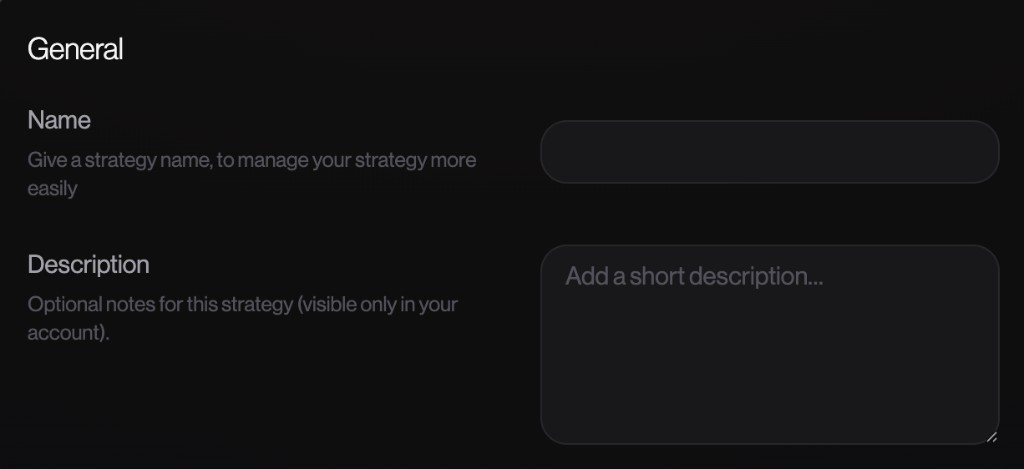
- Name — short label for the strategy.
- Description — optional notes visible only in your account.
Wallets to follow
This section defines the source wallets the bot watches. When one of these wallets emits a matching buy signal, the strategy can mirror it according to your buy options.
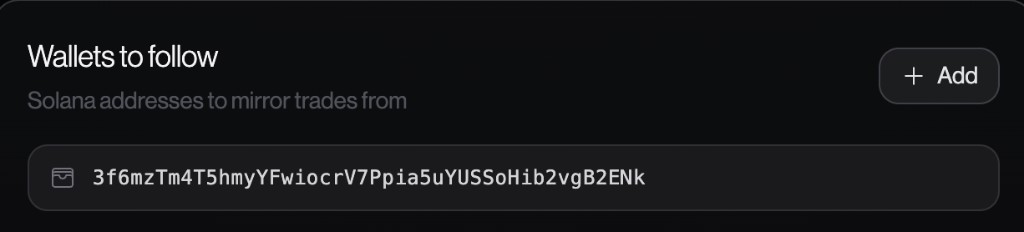
Only real wallet addresses are allowed here. Token accounts, program accounts, mints, and other non-wallet addresses are rejected. The app checks the address format first; the API also checks account ownership on-chain when account info is available, so a token or program account cannot be used as a copied wallet.
- At least one wallet is required.
- Duplicate wallet addresses are rejected.
- The current hard cap is 5,000 followed wallets per strategy.
Trading bot
Buy options
Buy options decide how much the bot buys when a followed wallet creates a valid buy signal, which market-cap range is allowed, and how many buy transactions the bot may send per distinct token while the strategy is running.
These settings belong to one strategy. Another strategy can follow the same wallet with a different size, market-cap band, or buy-max.
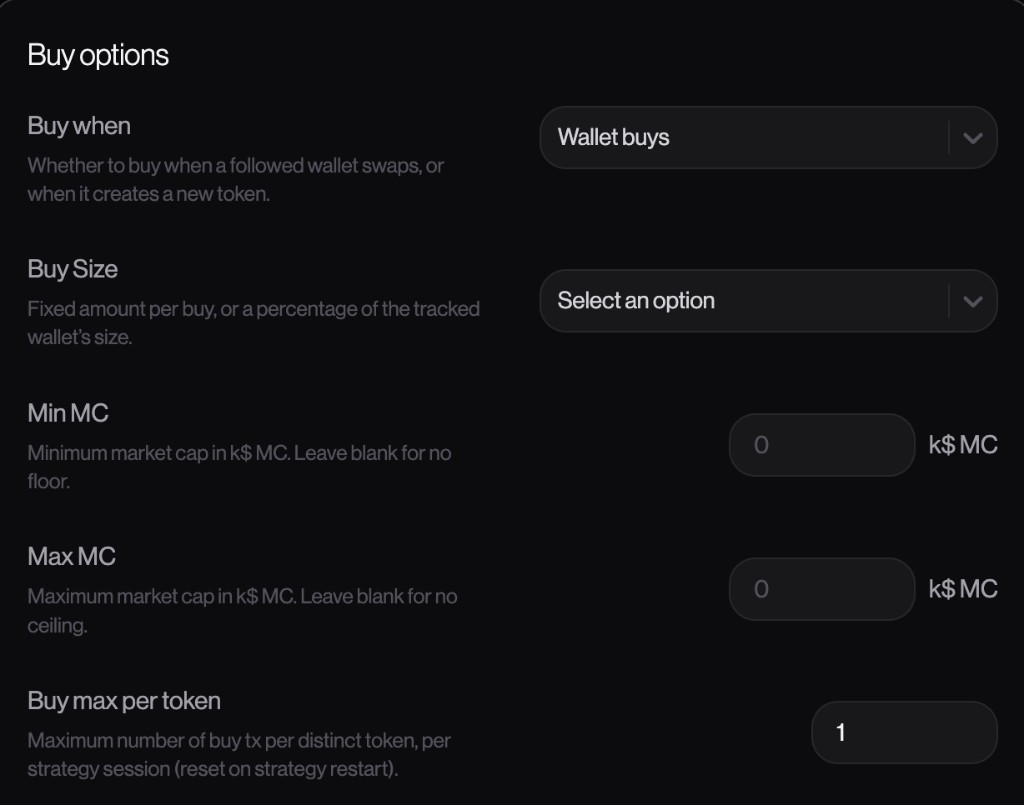
Buy size
- Fixed — the bot buys the same amount every time. The amount can be in USD or SOL.
- Proportional to wallet — the bot sizes your buy as a percentage of the followed wallet's buy size. For example,
50%means your quote size is half of the copied wallet's quote size. - Advanced function (Pro) — the bot maps each copied-wallet buy to your buy using a configurable curve (spread, optional S-curve distortion, and optional bounds). See Advanced function (Pro) below.
Only one sizing mode can be active at a time. The form requires a valid configuration for the selected mode before a strategy can be saved.
Advanced function (Pro)
Use this mode when a flat fixed amount or a single wallet percentage is not enough — for example, to size up on large wallet entries, skip tiny wallet buys, or shape how aggressively your size follows theirs.
The bot compares the followed wallet's buy notional to Wallet buy notional base to get a ratio, applies your Spread coefficient and Sigmoid distortion, then multiplies by Your buy notional base. Optional bounds can block buys or clamp the result.
- Your buy notional base — your reference buy size when spread is
0%(the curve is flat at this amount regardless of wallet size, subject to bounds). - Wallet buy notional base — the wallet buy size that defines ratio
1. Your size scales relative towallet buy notional ÷ wallet buy notional base. - Spread coefficient —
0%keeps every buy at your notional base (inside bounds).100%scales linearly with the wallet ratio when sigmoid is0%. Values above100%amplify size beyond that linear curve. - Sigmoid distortion —
0%is a straight ratio response;100%applies a full S-curve (flatter near the ends, steeper in the middle). - Wallet buy bounds (min / max) — if the wallet's buy notional is outside this range, the bot does not buy (
0). Leave empty for no bound. Uses the same unit as your notional bases. - Limit our buy (min / max) — floor and ceiling on your buy notional after sizing. Leave empty for no bound.
Example use cases
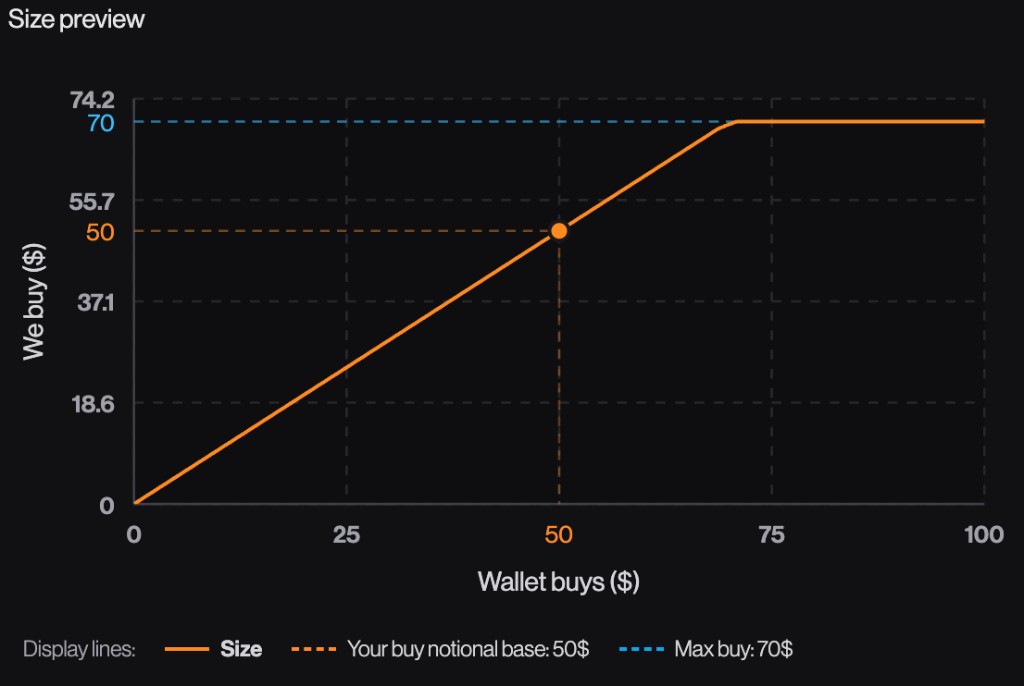
1 — Full proportional with a $70 cap
You want your buy to track the copied wallet 1:1, but never spend more than $70 on a single buy.
Your buy notional base: 50 USD
Wallet buy notional base: 50 USD
Spread coefficient: 100% (full proportional)
Sigmoid distortion: 0%
Wallet buy bounds (min / max): (empty)
Limit our buy (min / max): max 70 USD
Equal bases with 100% spread and 0% sigmoid give a straight line (your buy matches the wallet in USD). The max on Limit our buy flattens the curve once wallet buys would push you above $70.
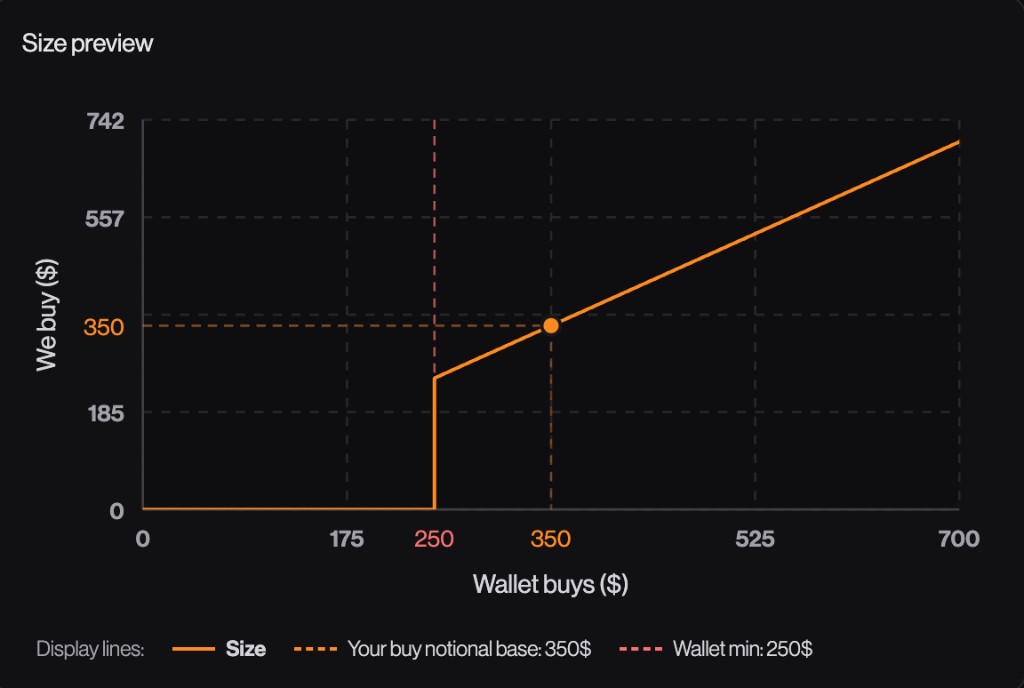
2 — Skip small wallet buys (backtest threshold)
The backtest report shows that the KOL performs well when investing more than $250, but performs poorly below that threshold.
Your buy notional base: 350 USD
Wallet buy notional base: 350 USD
Spread coefficient: 100% (full proportional)
Sigmoid distortion: 0%
Wallet buy bounds (min / max): min 250 USD
Limit our buy (min / max): (empty)
Wallet buy bounds (min) blocks any copy when the wallet’s buy notional is under $250. Above that, equal bases with full proportional spread track the wallet 1:1 in USD.
3 — Semi-proportional copy
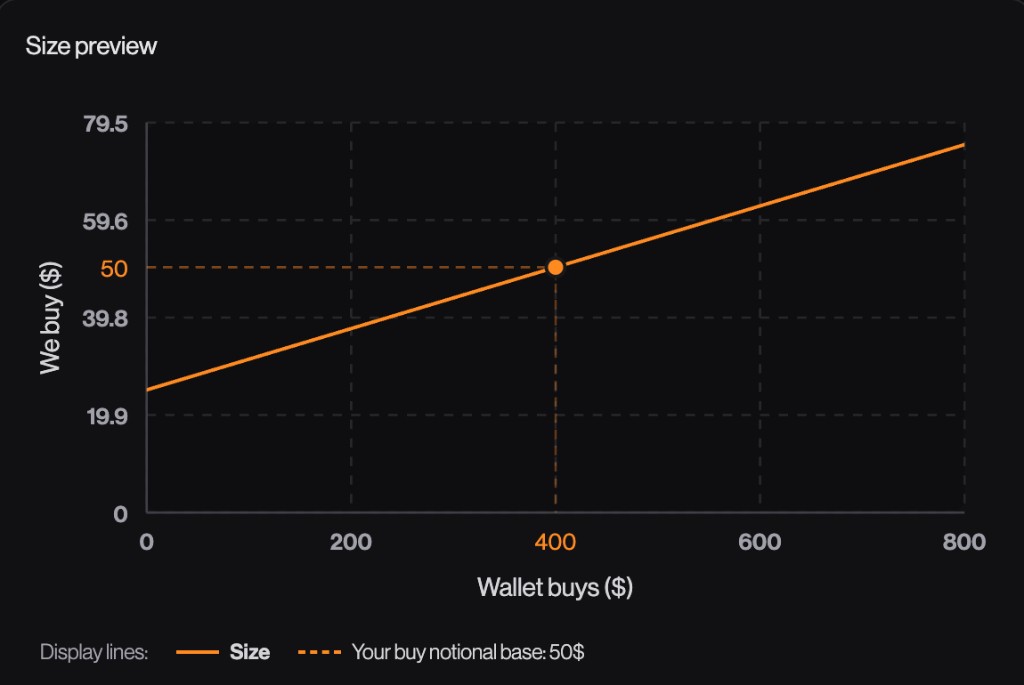
You want to copy a wallet semi-proportionally: when it invests much less than its usual average, you invest slightly less than your base amount;
When it invests much more than its usual average, you invest slightly more than your base amount.
Your buy notional base: 50 USD
Wallet buy notional base: 400 USD
Spread coefficient: 50%
Sigmoid distortion: 0%
Wallet buy bounds (min / max): (empty)
Limit our buy (min / max): (empty)
Wallet buy notional base is the wallet’s typical buy ($400 here). At that size you spend your base ($50). 50% spread pulls extremes toward that anchor: ~$25 when the wallet buys $0, ~$75 when it buys $800 (2× its base).
4 — Non-linear sizing from wallet trade size
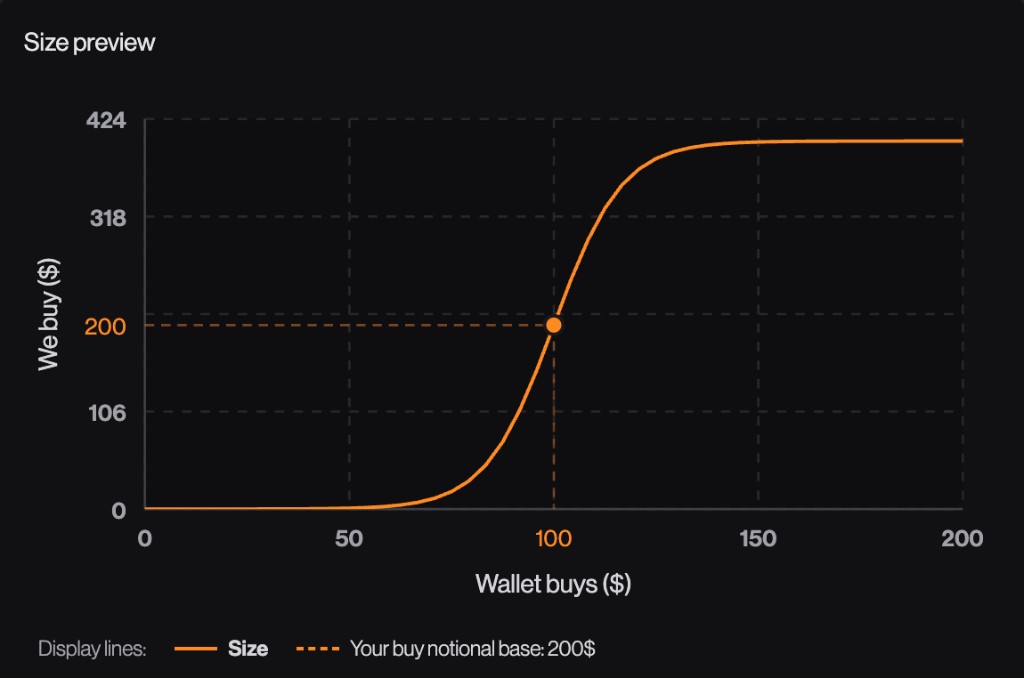
Your base allocation is $200 when the wallet buys $100. The sizing curve then scales smoothly around this reference point:
- Wallet buys less than $100 → you buy less than $200.
- Wallet buys exactly $100 → you buy $200.
- Wallet buys more than $100 → you buy more than $200, up to a maximum of roughly $400.
This lets you participate in small trades while allocating more capital to larger trades that may signal stronger conviction.
Your buy notional base: 200 USD
Wallet buy notional base: 100 USD
Spread coefficient: 100% (full proportional)
Sigmoid distortion: 100%
Wallet buy bounds (min / max): (empty)
Limit our buy (min / max): (empty)
Full spread with 100% sigmoid flattens tiny wallet buys near $0 and caps growth near ~$400 on large wallet entries, while keeping the anchor at wallet $100 → you $200.
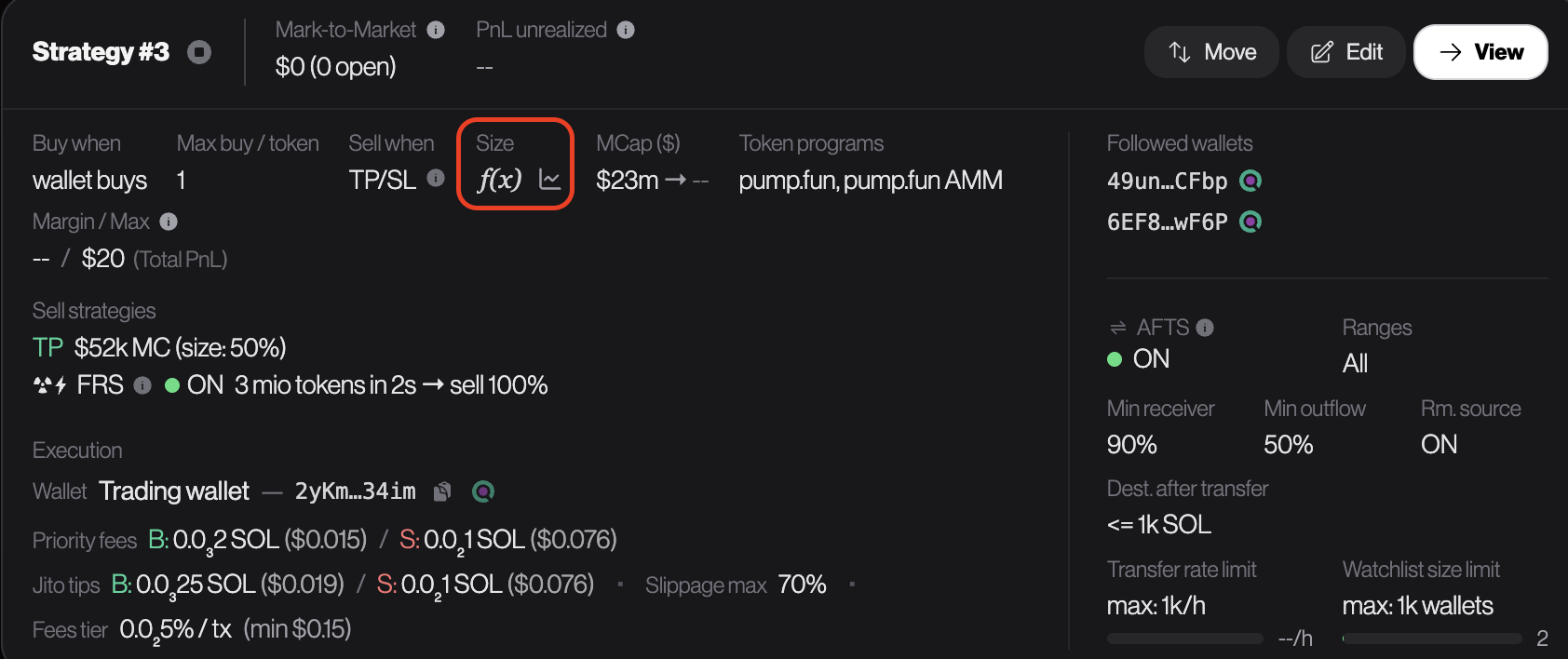
Once the strategy is saved, you can reopen the curve from the summary card: under Size, the f(x) icon marks advanced sizing — click the chart icon beside it to view the curve and all parameters.
Market-cap filters
- Min MC — minimum token market cap, expressed in k$ MC. A value of
50means $50k market cap. - Max MC — maximum token market cap, also expressed in k$ MC. A value of
1600means $1.6M market cap.
Use a minimum market cap to avoid very early / tiny tokens. Use a maximum market cap to avoid copying entries that already ran too far. If both are set, max must be greater than min.
Token programs are selected by the app for this strategy family: the current form sends Pump.fun and Pump.fun AMM as allowed programs.
Buy max per token
This setting caps how many buy transactions the bot may execute for each distinct token during the current strategy session (the count resets when the strategy is restarted).
Leave the field blank for no limit. Set a positive integer when you want to cap how many times the bot can buy the same mint before your sell logic or manual exits apply.
Defer buy
Optional delay, in seconds, after a buy signal is detected. The bot does not send the buy immediately. After the delay it re-evaluates every applicable entry filter — market-cap band, max margin, max buys per token, and the other buy options — and places the order only if every filter still passes.
Leave the field at 0 or empty for no delay.
Typical use case: you notice that when a given dev’s token clears 12k$ MC after 20 seconds of life, it typically runs much higher. That same dev’s other tokens are fails. If you enter every token they launch, expected value is negative because the fails outnumber the runners. Solution: enter only X seconds after the buy signal (the dev-buy or the copy-buy) and re-check the filters after the delay. If the token is still alive and above Xk$ MC, you buy — you already know it has a strong chance of running much higher.
Trading bot
Execution
Execution settings decide how hard the bot pushes each transaction into the next blocks, and how much worse the on-chain price is allowed to become before the bot gives up. These numbers are not cosmetic: in fast Solana markets, they can be the difference between landing the copy and missing it.
Laser mode
Laser mode is an optional low-latency send path. When enabled, the bot uses a dedicated UDP deshredder that starts decoding before every shred fragment has arrived — typically saving hundreds of microseconds versus waiting for a complete shred set — then broadcasts through an extended send path: up to 10 relays and 8 servers. Shred intake is distributed across Frankfurt, Amsterdam, New York, Tokyo, Dublin, and London.
On top of the priority fees and Jito tips you set, the engine can add extra priority fees automatically from current Solana congestion. Part of the extra platform fee may be used for that bump. The goal is earliest inclusion versus other bots on the same signal.
This mode is faster than Tradewiz Turbo in 90% of cases and fproject in 100% of cases. See our benchmark.
Laser mode increases platform fees by 0.5% and raises the per-transaction minimum by $0.25 (for example $0.15 → $0.40). The surcharge stacks with Anonymous fees vault if that option is also enabled.
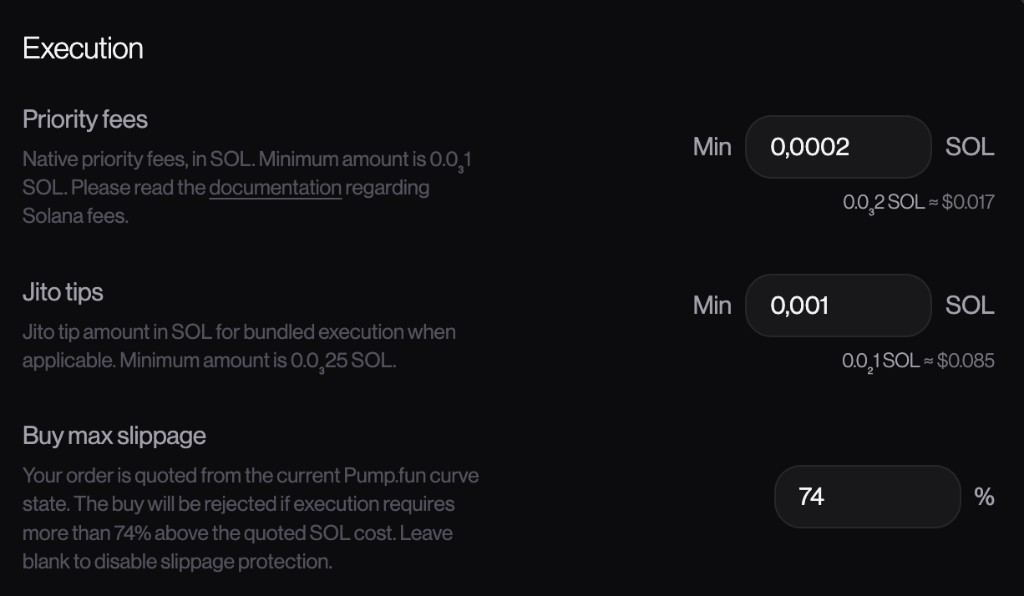
Priority fees
Priority fees are the native Solana way to pay more for transaction priority. Under the hood, Solana uses compute units: a transaction requests a compute-unit limit, then sets a compute-unit price. The priority fee is based on that requested compute budget, not only on what the transaction finally consumes. Solana explains this in its compute budget documentation.
In this form you enter a simple SOL amount. The app converts it into a compute-unit price for the strategy transaction. Higher priority fees make sense when blocks are busy or when you are copying wallets that trade into crowded launches. If you set it too low, the transaction can sit behind better-paying transactions and land late, or not land at all.
The form minimum is 0.0001 SOL. Treat it as a floor, not as a magic value. Small, quiet trades can often work near the minimum. Competitive tokens usually need more.
Jito tips
Jito tips are different. They are not Solana priority fees. They are tips used on the Jito path, where transactions or bundles go through Jito's block-engine flow. Jito describes this in its low-latency transaction send docs: bundles compete on tips, and the winning flow is sent to validators running Jito-Solana.
Simple version: priority fees help inside the normal Solana fee market; Jito tips help when the transaction is routed through Jito's auction / bundle path. You usually want both set to sane values. Priority fee alone can be too weak during hot launches. Jito tip alone does not replace the regular transaction priority path.
The form minimum is 0.00025 SOL. In quiet markets that may be enough. In contested launches, copy trades, or rug-sniping moments, the tip may need to be much higher because you are competing with other bots for the same blockspace.
How to tune fees
- If you miss entries, raise priority fees and Jito tips. Missing entries usually means you were too cheap, too slow, or both.
- If you land but execution is late, raise them gradually. Late fills often cost more in price movement than the extra fee would have cost.
- If your P&L is eaten by fees, lower them or increase trade size. Very small trades can become unprofitable even when the gross trade is right.
- If the market is calm, do not overpay. The goal is not to maximize fees; the goal is to pay enough to land reliably.
Buy max slippage
Slippage is your price protection. The bot quotes the buy from the current Pump.fun curve state. If the trade would cost more than your configured percentage above that quote by the time it executes, the buy is rejected.
Example: the quote is 1 SOL and max slippage is 18%. The bot accepts the buy up to 1.18 SOL. If the curve moved so much that the buy now needs 1.20 SOL, the transaction is rejected instead of chasing the price.
Higher slippage means more landed buys, but worse possible fills. Lower slippage protects your entry price, but you will miss more trades when markets move fast. For slow wallets or larger tokens, lower slippage can be fine. For very early Pump.fun moves, too-tight slippage often just means you never enter.
Buy max slippage in k$ MC
Instead of a percent above the quoted SOL cost, you can set buy max slippage as a hard fill market-cap cap in k$ MC. The two units are mutually exclusive: the form is either % or k$ MC, never both. Minimum in this mode is 1 k$ MC ($1,000).
The bot still quotes from the current Pump.fun curve. The buy is rejected if the fill market cap would exceed the cap you set. Example: cap 80 k$ MC — a fill at $75k is accepted; a fill that would land at $85k is rejected.
This is not the same as the Min MC / Max MC filters:
- Max MC is an entry filter on the token’s market cap at signal time. If the token is already above that band, the bot does not attempt the buy.
- Max slippage in k$ MC is a fill-price cap. The signal may be inside your MC band, but if execution would print above your k$ cap, the buy is rejected.
Sell-side slippage stays fixed at 100% by the algo in both modes.
Anonymous fees vault
When you use a trading bot, the fees you pay to the bot are usually transferred to one or more vault wallets operated by the service. Some experienced traders can follow these flows and trace them back to you, revealing your transactions and therefore part of your strategies.
The Anonymous fees vault option routes block.λ fees to a private fee vault dedicated to your account. We then retrieve the funds to our operational wallets through anonymous means (for example via CEX and mixers), which makes it much harder for those traders to trace the flows back to you. Use this option if you want maximum confidentiality for your strategies.
Enabling this option increases platform fees by 0.25% and raises the per-transaction minimum by $0.08. The surcharge stacks with Laser mode if that option is also enabled. Use it when confidentiality against wallet trackers matters more than the extra cost.
Trading bot
Sell strategies
Sell strategies decide how the bot exits positions after a buy. You can always use manual sell from the strategy page as an override, even when automatic sell logic is configured. The form’s Mark-to-Market control (next to TP/SL) is documented under Mark-to-Market mode.
When wallet sells
Use this when you want the strategy to mirror exits from the followed wallet. If he sells a token you hold, the bot sizes your sell from the copy-sell mode. A flat position is ignored. A computed size larger than your remaining position (after in-flight sells) is capped to what you still hold.
Same starting situation
You copy the wallet at 50%. He then sells half of his position.
Copy sell then depends on the mode you chose, described below:
Fixed amount
You sell a fixed amount, no matter how much he sold.
config $20 → you sell min($20, $50) = $20
You keep $30 · he keeps $50
% of your position
You sell a % of your position, without taking his sell amount into account.
config 25% → $50 × 25% = $12.50
You keep $37.50 · he keeps $50
% of copied tx $ sold
You sell a % of his transaction in $, no matter what that amount represents of his position or yours. If the amount is larger than your position, your whole position is sold.
config 100% → min($50, $50) = $50
You keep $0 · he keeps $50
Copy % of wallet position
First take the percentage of his sell relative to his position, then apply that same sell percentage to your position.
$50 / $100 = 50% → apply 50% to your $50 position → you sell $25
You keep $25 · he keeps $50
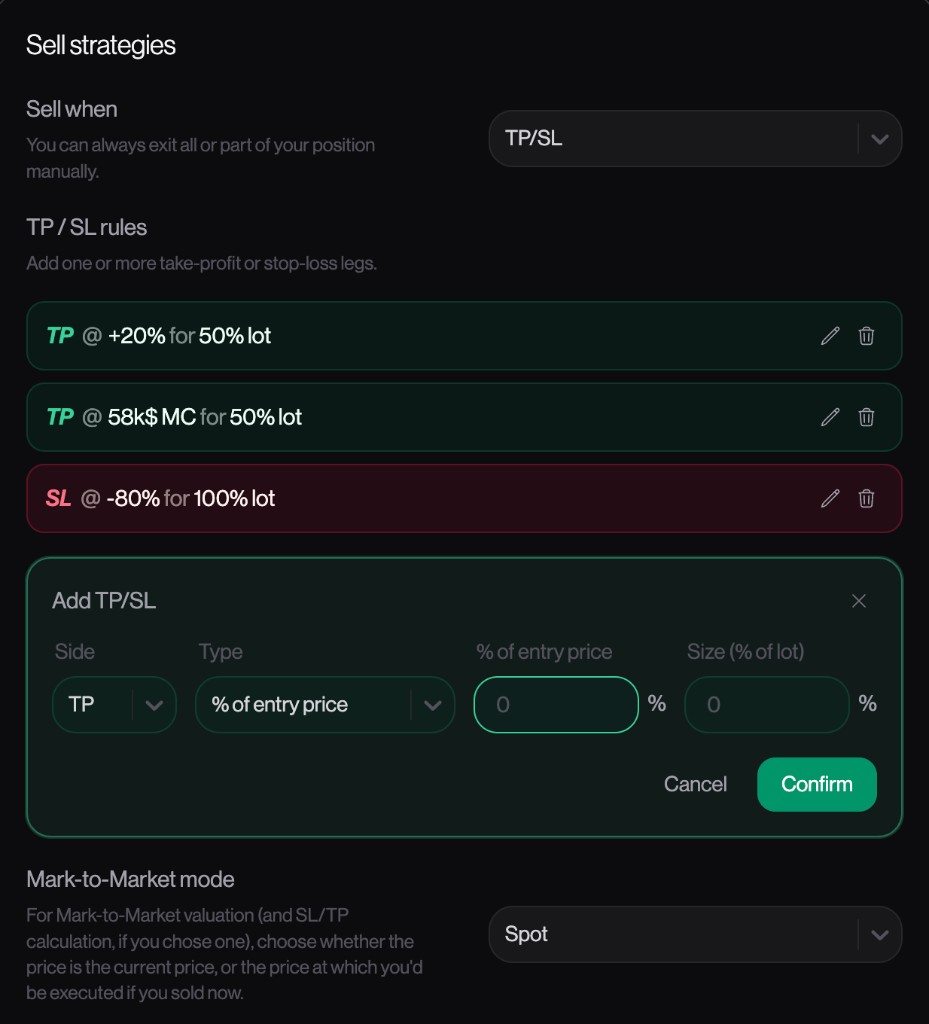
Multi TP/SL
TP/SL mode lets you add one or more take-profit, stop-loss, and trailing stop-loss legs. Each line has:
- Side — TP (take profit), SL (stop loss), or TSL (trailing stop loss).
- Type — either % of entry price, % of last max price (TSL only), or Price in k$ MC.
- Target — percentage move from entry price, drop from the running ATH, or exact market cap in K$.
- Size (% of lot) — how much of the original position lot to sell when that leg fires.
TP percentages must be above 1%. SL and trailing SL percentages must be below -1%. Total TP, SL, and TSL sizes each cannot exceed 100%.
Trailing Stop-Loss
A regular stop loss is tied to your entry price. If you bought at $20k market cap with SL -30%, the bot sells when price falls 30% below entry — even if the token first pumped to $80k and gave back most of the gain.
A trailing stop loss follows the highest price your lot has seen since the buy. The stop line moves up when price makes new highs, but it never moves back down. You choose how far below that peak you are willing to let price fall — for example -15% from the last max.
Example: you enter at $20k MC. Price runs to $50k — that becomes your “last max”. With TSL -20%, the bot sells if price drops 20% below $50k (around $40k), not 20% below your entry. If price keeps climbing to $70k, the trigger moves up with it.
In the form, pick TSL and % of last max price. Trailing stops only work with percentages (not market-cap targets). Sizing uses the same % of lot rules as TP and SL.
How “% of lot” works
In TP/SL mode, a lot is created every time the strategy buy fills. The lot stores the original token amount bought, the remaining token amount still managed, the entry price, and which TP/SL lines already fired for that lot.
This matters because Size (% of lot) is based on the original buy lot, not on the live remaining balance. A 50% TP on a 100-token lot means “sell 50 tokens when this TP fires”, even if the position later contains tokens from other buys.
1. Buy creates a lot
The strategy buys 100 tokens. The algo creates one lot for that buy.
remaining = 100 tokens
All TP/SL rules now track this lot from its own entry price.
2. First TP sells part of it
You configured TP +20%, size 50% lot. When it hits, the algo sells 50% of the original 100-token lot.
remaining = 50 tokens
That TP line will not fire again for lot A.
3. Full SL after a partial TP
You also configured SL -80%, size 100% lot. If it hits after TP1, the SL asks for 100 tokens, but the lot has only 50 left.
available = 50 tokens
sold = 50 tokens
The algo never sells more than what remains in the lot.
Multiple buys create multiple lots. If the strategy buys 100 tokens, then later buys 80 more, TP/SL rules are checked per lot. A 50% lot TP can sell 50 tokens from the first lot and 40 tokens from the second lot if both lots hit their trigger.
If several TP/SL lines trigger at the same time, the algo combines the allocations into one sell order, then caps the final size by the real on-chain position balance. If a manual sell or API sell happens outside the TP/SL engine, the algo reconciles lots in FIFO order so future TP/SL sizes do not overestimate what remains. Tiny final sell sizes below 1 token are skipped as dust.
Complex example: several buys + manual sell
Here is the situation that usually creates confusion: the position card shows one token balance, but the TP/SL engine remembers several lots inside that position.
1. Two buys, two lots
The strategy buys the same token twice.
lot B: entry = 80 tokens @ $30k MC
position = 180 tokens
Each lot has its own entry price, so a +20% TP is not the same market cap for A and B.
2. TP hits only lot A
You have TP +20%, size 50% lot. Price reaches the TP for lot A, but not yet for lot B.
lot A remaining = 50
lot B remaining = 80
position = 130 tokens
The same TP line stays open for lot B until B reaches its own target.
3. You manually sell 60
You use manual sell from the website or API and sell 60 tokens. This sell was not generated by TP/SL, so the algo reconciles lots FIFO: oldest lot first.
consume lot A first: 50 → 0
consume lot B next: 80 → 70
position = 70 tokens
Lot A is now fully consumed. All TP/SL lines for lot A are considered closed because there is nothing left to manage.
4. Later, B's TP fires
Lot B finally reaches its +20% TP. The configured size is still 50% of lot B's original entry, not 50% of the 70 tokens currently left.
available in lot B = 70
sold = 40
lot B remaining = 30
The manual sell reduced the lot, but it did not change what “50% lot” means.
Mark-to-Market mode
Mark-to-Market mode controls which price the strategy uses for valuation and TP/SL checks. This matters because the displayed market price and the price you would receive if you sold now are not always the same, especially on thin curves or larger positions.
Spot
Uses the current mark price from the latest observed transaction or pool state.
TP target = $58k MC
TP is hit
This is simpler and reacts quickly, but it may overestimate what you can actually receive if your sell moves the curve.
Estimate @ next bid
Estimates the price you would get if your sell landed just after the current transaction.
estimated sell = $56k MC
TP target = $58k MC
TP is not hit
This can avoid sells that look profitable at spot but would execute below target after your own price impact.
Use Spot when you want faster, lighter checks. Use Estimate @ next bid when execution quality matters more than reacting immediately, especially for larger positions or thinner liquidity.
None (manual or API only)
Choose None when you do not want automatic exit logic. You still keep control: you can sell full or partial positions manually from the strategy page, or submit sells through the buy/sell API. This mode gives maximum discretion, but it also means the bot will not auto-close unless you intervene.
Trading bot
Margin
Max margin is a per-strategy risk control. When enabled, it blocks new buys once the selected margin metric crosses the configured limit. Existing positions stay visible and can still be sold.
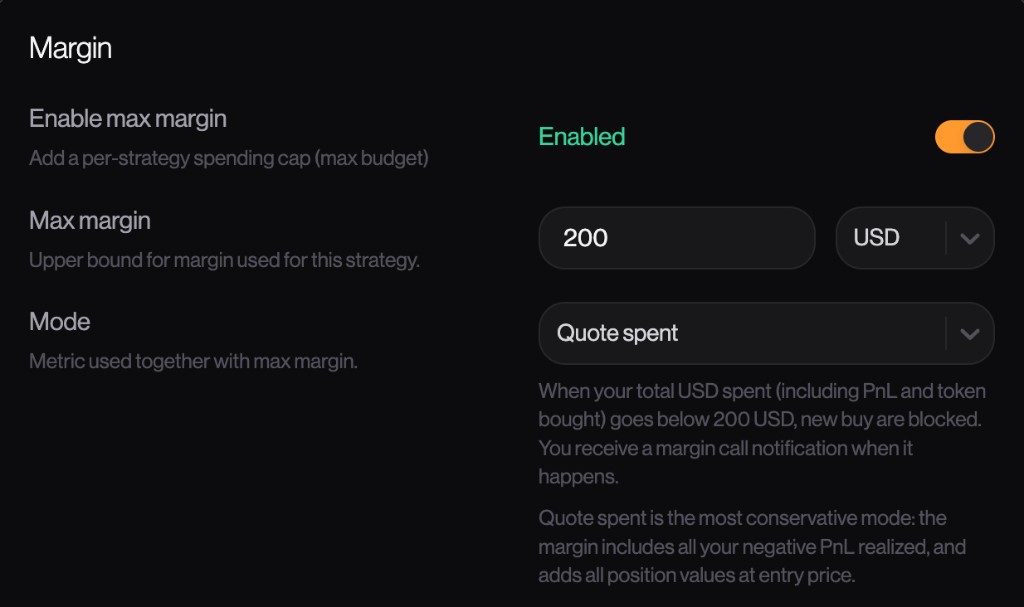
- Enable max margin — turns the buy-blocking risk system on or off for this strategy.
- Max margin — the limit amount, configured in USD or SOL.
- Mode — selects which metric is compared against the max margin.
PnL Realized
Uses only realized P&L from closed sells. This is the least conservative mode because open positions do not count until they are sold. A strategy can keep buying while open losses are still unrealized.
Total PnL
Uses realized plus unrealized P&L, evaluated in real time for all open positions at market price. This reacts to open drawdown before it becomes realized.
Quote spent
Uses a capital-at-risk view: it includes negative realized P&L and adds position values at entry price. This is the most conservative mode because it treats deployed inventory as risk budget already consumed.
When the selected metric goes beyond the configured limit, new buys are blocked and the app sends a margin-call notification. Selling remains available so you can reduce exposure and free margin again.
Auto-Pause at Threshold
When max margin is enabled, you can also set Pause if margin reaches threshold (USD). This is a profit-side trigger, not the loss cap: if the live margin metric reaches this amount, the strategy is paused automatically — same effect as clicking Pause (no new buys; sells and TP/SL keep running).
Typical rug-sniping use: a rugger’s first token is a runner and your margin jumps, then they farm copiers with a series of failed launches. Auto-pause stops new entries after the runner instead of following them into the fails. Leave the field empty to disable it. On the summary card the threshold appears as A/PT ≥ $….
Reset margin
On a running strategy that has max margin configured, the summary Reset button zeros the current margin reading without stopping the session. Later drawdown is measured from that new zero. Confirm in the dialog before it is sent. You do not need to stop and restart the strategy.
Product
Benchmark
How Laser mode lands versus public bots on the same signal.
Results
With Laser mode enabled, block.λ is faster than Tradewiz Turbo in 90% of cases and faster than fproject in 100% of cases.
| Competitor | Laser mode lands first |
|---|---|
| Tradewiz Turbo | 90% of cases |
| fproject | 100% of cases |
“Faster” means earlier inclusion on the same buy signal — the copy that hits the next blocks first, not a cheaper fee or a better fill after the fact.
Why Laser mode wins
Laser mode uses a dedicated UDP deshredder that starts decoding before every shred fragment has arrived, then broadcasts through an extended send path: up to 10 relays and 8 servers, with shred intake in Frankfurt, Amsterdam, New York, Tokyo, Dublin, and London. Extra priority fees can be added automatically from Solana congestion. Full setup is on the Laser mode page.
Trading bot
Strategy terminal
The strategy page is the command center for one running bot configuration: start or stop the strategy, inspect live performance, review every copied transaction, share PnL cards, and manually reduce positions when needed.
Page layout
The strategy page should be read as a live risk report. It answers four questions:
- Can the bot trade? Status tells you whether the strategy is stopped, waiting for the algo, actively running, or running with new buys paused.
- How much is still at risk? Mark-to-Market and open positions describe exposure that can still move.
- What is already locked? Realized P&L, daily P&L, and the calendar describe closed results.
- Was execution good? Transaction diagnostics compare your fill against the copied wallet and the best theoretical copy fill.
Summary card
Mark-to-Market is current exposure value, not profit. It answers: “If I sold my open inventory around current mark prices, how much is this inventory worth?”
Unrealized P&L is the estimated gain/loss still inside open inventory. It is useful for risk decisions, but it is not locked until a sell lands.
Daily P&L is realized performance since midnight in your timezone. Open positions do not count there until they are sold, which makes it better for judging what the strategy has actually banked today.
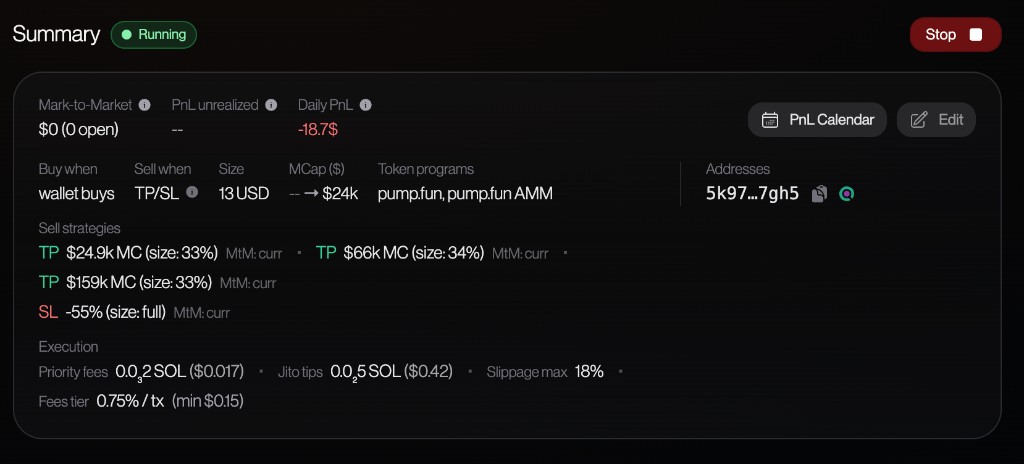
PnL w/ fees switches from gross trading result to net result after known execution costs. Use gross P&L to evaluate entries/exits; use fee-inclusive P&L to evaluate real profitability.
Control your strategy
While a strategy is running, the summary header shows Pause (or Resume when buys are paused), Stop, and a ⋮ menu on the right. Use Start when the strategy is stopped.
Pause and Resume buys
While a strategy is running, you can temporarily pause new buys without stopping the session. Click Pause in the summary header. The bot keeps managing open positions: take-profit, stop-loss, and manual sells still apply. It simply stops opening new copy positions until you click Resume.
The status badge shows Paused when buys are paused but the session is still active. After you click Pause or Resume, the buttons and badge update once the server and algo confirm the change. You also receive an in-app notification (and on Telegram, if linked) when buys are paused or resumed.
Pause is not the same as Stop: stop ends the session and requires flat positions for a normal stop. Pause is for a short break from new entries while existing exposure stays under bot management.
Rugger sniping: use Pause if you want AFTS to keep following a rugger — for example, tracking wallet rotations — without buying their tokens.
Stop (normal)
Stop tells the bot to end the session cleanly. The server only accepts a normal stop when there are no open positions (non-flat balances) in the current session. If you still hold tokens, close or manually sell them first, then stop again.
Status moves through Running → stopped. If the algo is slow to acknowledge, the UI may show Awaiting algo briefly after start; the same stop rules apply once a session is active.
Force stop
When the strategy is running, open the ⋮ menu and choose Force stop if you need to halt the bot while tokens are still held. This is an emergency override, not a substitute for selling.
- A confirmation dialog explains that open inventory will not be sold automatically.
- To proceed, you must type
force stopexactly and confirm. - Tokens remain in your wallet; the bot no longer manages them. You are responsible for monitoring and selling manually.
Warning: Force stop does not sell your positions. Use it only when you fully understand that leftover tokens will stay exposed until you handle them yourself.
Margin and max-margin controls
Margin / Max is the strategy’s buy-blocking risk limit. The current margin comes from live strategy stats; the strategy is at limit when that margin is lower than or equal to -Max. In that case, the bot blocks subsequent buys and sends a margin-call notification. Existing positions still remain visible and can be sold.
| Mode | Meaning |
|---|---|
| Realized PnL | Checks realized P&L only. If realized P&L is below -Max, the bot blocks subsequent buys. Open positions do not affect this mode until they are sold. |
| Total PnL | Checks realized plus unrealized P&L on open positions. If total P&L is below -Max, the bot blocks subsequent buys. This mode reacts to open drawdown before it is realized. |
| Quote out | Checks realized P&L minus open positions valued at average entry price, in the configured quote unit. If that value is below -Max, the bot blocks subsequent buys. This mode limits how much quoted capital is still committed to the market. |
The max amount can be configured in USD or SOL. The mode label after the max value, for example (Total PnL), tells you which calculation is driving the block.
If Auto-Pause at Threshold is set, the same row shows A/PT ≥ $…. When the live margin reaches that profit-side level, the strategy pauses (no new buys). While the session is running and max margin is configured, Reset zeros the current margin without stopping the strategy — see Reset margin.
Realized PnL example
Max margin is $50. You have closed trades at -$60, and one open position currently down -$10.
This mode ignores the open loss because it only looks at closed P&L. The block happens because realized P&L is already below -$50.
Total PnL example
Max margin is $50. You have closed trades at -$20, and open positions currently down -$35.
This mode includes open drawdown. Even though realized P&L alone is not below the limit, total P&L is below -$50.
Quote out example
Max margin is $50. You have realized +$20, but you still have $80 deployed in open positions at average entry price.
This mode limits capital still committed to the market. It can block buys even when realized P&L is positive.
Charts
Use short periods (1s, 15s) to inspect fast execution moments. Use longer periods (15m, 1H) to judge session direction without micro-noise.
PnL chart
The PnL chart plots four series so you can separate locked results from open exposure, and compare gross trading performance with net performance after fees.
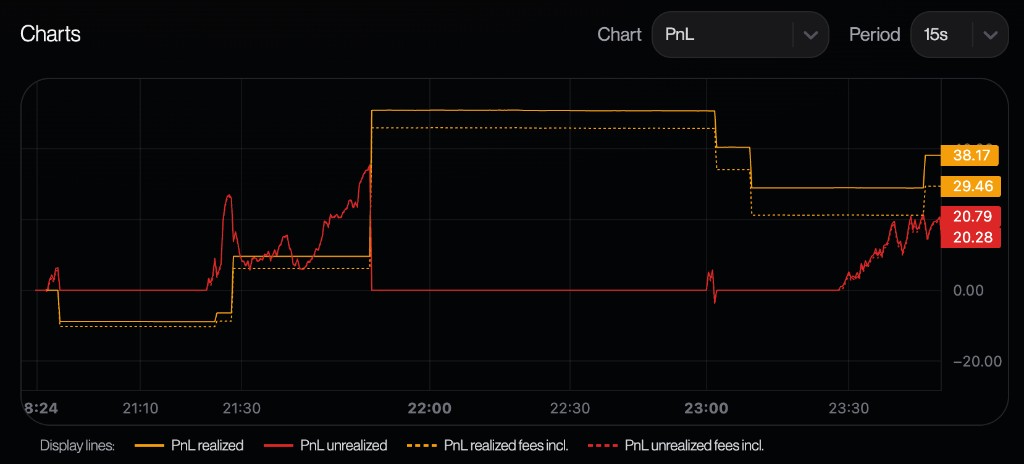
15s). Toggle lines under Display lines to show or hide each series.- PnL realized (solid amber) — profit or loss already booked from closed sells. It moves in steps: flat while nothing closes, then jumps when a sell finalizes.
- PnL unrealized (solid red) — estimated P&L on what you still hold; it moves continuously as mark prices change.
- PnL realized fees incl. (dashed amber) — same stepped realized curve, but after known execution costs. Usually sits below solid realized when fees matter.
- PnL unrealized fees incl. (dashed red) — unrealized P&L if you closed at current prices and paid fees; tracks the volatile path slightly below solid unrealized when costs are material.
How to read it: Compare solid vs dashed to see how much fees erode results. Compare amber vs red to see how much P&L is still floating in open positions versus already locked in. If gross and fee-inclusive lines drift far apart, execution costs are large relative to trade size.
Margin chart
Switch the chart type to Margin to see how your current margin tracks against the configured cap (max margin). This view is for risk limits, not for P&L.
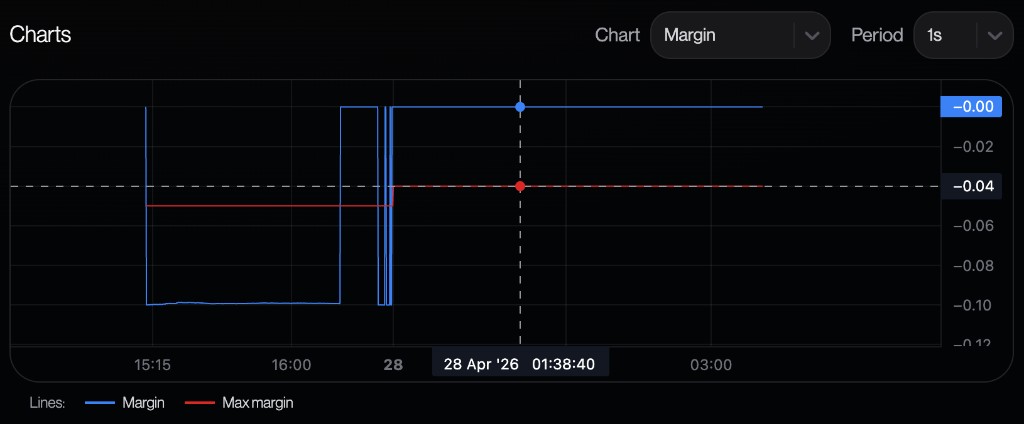
PnL calendar
The calendar is for realized day-by-day consistency. It ignores open risk until positions are sold, so it is better for answering “what did this strategy actually bank?” than “what is open right now?”
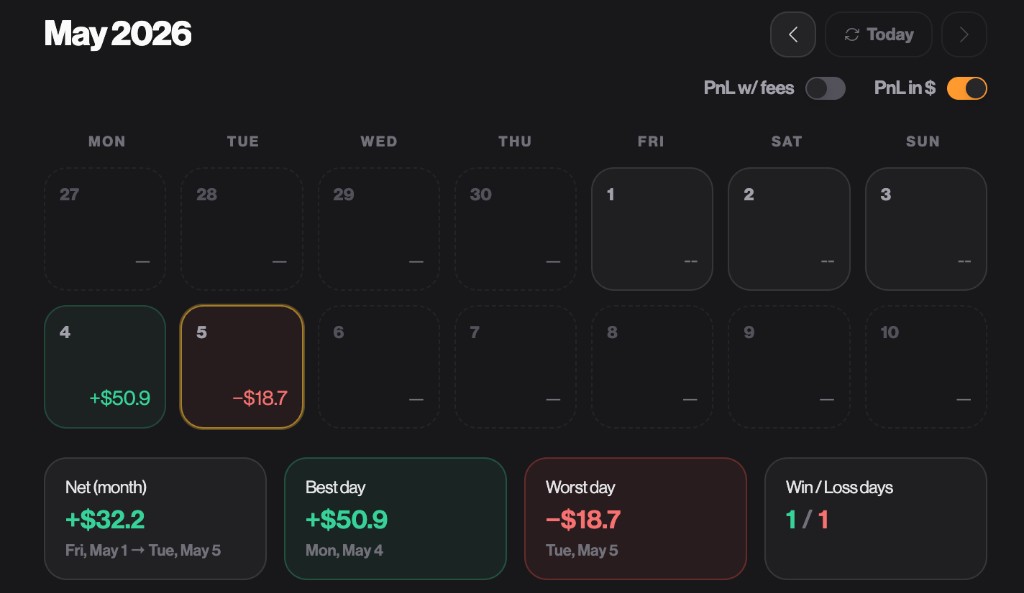
PnL w/ fees changes whether daily buckets include execution costs. PnL in $ converts values to USD using the available SOL/USDT rate; disabling it is useful when you want to reason in raw SOL terms.
Positions
A position groups all buys and sells for one token in the current session. Realized belongs to the part already sold; Unrealized belongs to the remaining balance. After a partial sell, both can exist at the same time.
Avg. Price is displayed as average entry market cap, so it can be compared directly to execution market caps in the transaction table.
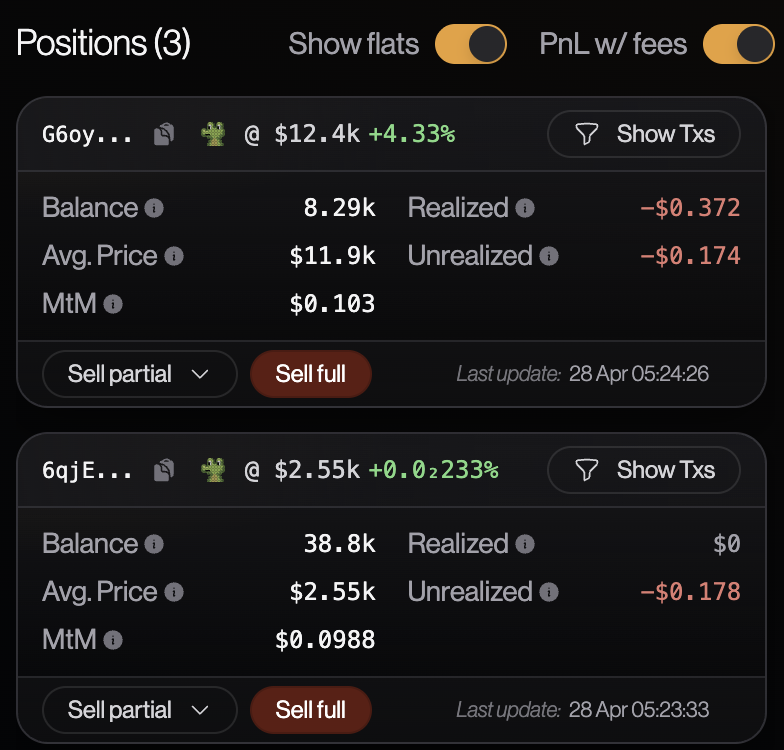
| Field | Meaning |
|---|---|
| Token header | Shows the token mint shortcut. The copy icon copies the mint address; the GMGN icon opens external token analysis. |
| @ market cap | Current mark-to-market market cap for the token. The percentage beside it compares current market cap to the position’s average entry market cap. |
| Show Txs | Filters the Transactions table to this token and scrolls there. Use it to explain why a position has its current balance, realized P&L, or unrealized P&L. |
| Balance | Remaining token amount still held by the strategy. If the position is flat, there is no meaningful open exposure left for that token. |
| Avg. Price | Average entry market cap across buys for the position. It is not a per-token price; it is shown as market cap so it can be compared with executed M.C. in the transaction table. |
| MtM | Mark-to-Market value of the remaining balance at the current token mark price. This is exposure value, not realized profit. |
| Realized | P&L already locked by sells for this token. With PnL w/ fees enabled, this is shown after known fees. |
| Unrealized | Estimated P&L still attached to the remaining balance. It changes with market price and becomes realized only when a sell executes. |
| Last update | Timestamp of the latest position refresh, useful for checking whether a stale-looking value is actually recent. |
| Sell partial / Sell full | Manual override actions. Partial sell realizes only the selected percentage; full sell requests an exit of the remaining balance. |
Manual selling
Manual selling is an override for risk reduction. A full sell exits the remaining balance; a partial sell realizes P&L on the selected percentage and leaves the rest exposed.
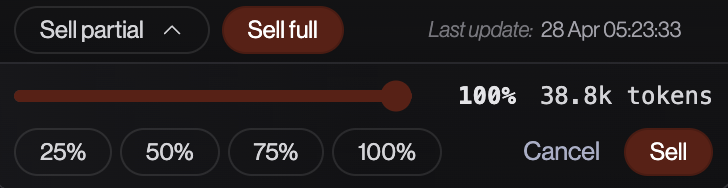
Manual sells appear in the transaction history as manual transactions. They do not have a copied trader or copied transaction because the decision came from you, not from a followed wallet signal.
Transactions table
The transaction table is where you diagnose execution quality. The summary and position cards tell you the result; this table explains how that result was produced.
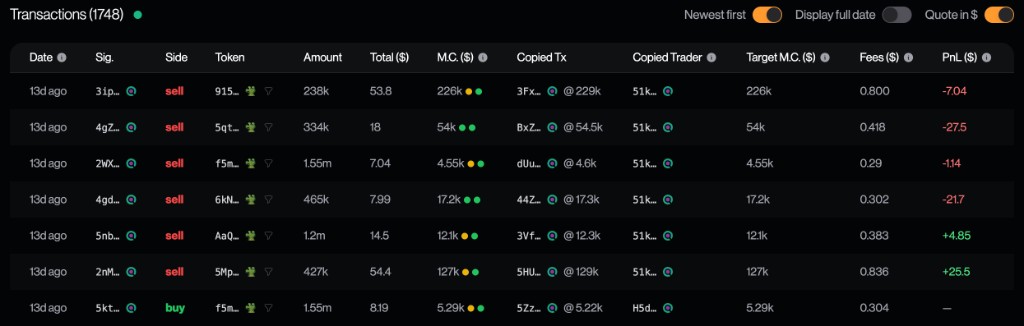
Newest first changes sorting. Display full date switches from relative ages to exact timestamps. Quote in $ controls whether quote amounts, market caps, fees, and P&L are expressed in USD or SOL.
Important columns
- Total is the notional size of the transaction in the selected quote currency. It is useful for checking whether the strategy respected the configured order size.
- M.C. is the market cap at which your transaction executed. For copy trading, this is the most important fill-quality number.
- Copied Tx is the source transaction the bot followed. Its market cap is the price reference of the original wallet action.
- Target M.C. is the best theoretical market cap if your transaction had landed immediately after the copied transaction. It uses the program bonding-curve formula to estimate the best price you could possibly have with your trade size if your transaction is exactly the next one after the copied transaction. The gap between executed M.C. and target M.C. estimates the cost of latency and queue position.
- Fees is not just the platform fee. It can include Pump.fun/PumpSwap fees, block.λ fees, priority fees, and Jito tips. High priority or Jito spend can make gross P&L look better than net P&L.
- PnL appears on sells because profit is realized when inventory is closed. Buys usually show no realized P&L because they open or increase exposure. On a sell with realized PnL, Share opens a PnL card.
Tooltips and execution diagnostics
The colored dots next to M.C. compress execution quality into a quick signal. Green means the fill was close to the reference; yellow/orange/red mean the fill moved farther away. For buys, paying a higher market cap than the reference is bad. For sells, receiving a lower market cap than the reference is bad.
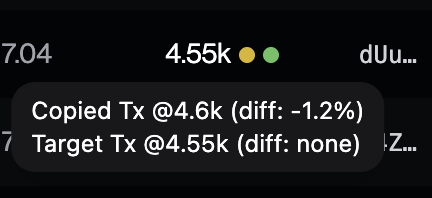
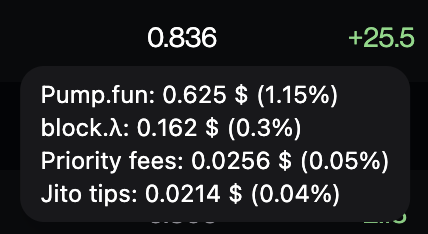
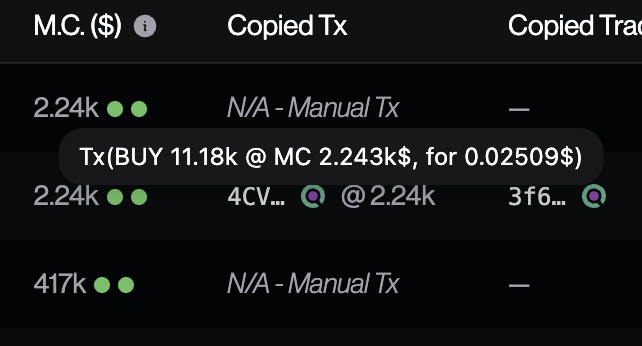
PnL cards
From any realized sell, Share generates a verifiable card you can download or copy as a public URL. Positive cards are also posted anonymously on the block.λ Discord. Themes, privacy, verification, and the optional post delay are documented on the dedicated PnL cards page.
Mobile behavior
On smaller screens, dense option rows move into compact menu dialogs: position options, chart period selection, and table options stay accessible without forcing the main layout to overflow. The data stays the same; only the control placement changes.
Trading bot
PnL cards
A PnL card is a shareable, verifiable image generated from a realized sell. It shows the economics of one closed trade — not your wallet, and not who you are — so you can post a win without handing someone your strategy.
What you can do
Open a card from the Transactions table on a strategy. On any sell that has a realized PnL, use Share.
Open Share on a realized sell
In the strategy terminal, find a sell row with a PnL value and click Share. Buys have no realized PnL, so they do not produce a card.
Choose how much to reveal
The dialog generates the card immediately. Use Include token name and time to show or hide the mint and the trade time on that copy of the card.
Download or copy the public link
Download PNG saves the image. Copy URL copies the public verification page — the same destination as the QR code printed on the card.
What a card shows
Every card is built from one closed sell. It shows the economics of the trade, never a wallet address:
| Field | Meaning |
|---|---|
| Total return | Market-cap change from average entry to sell. |
| Total PnL | Realized dollar result. A partial-sell share is shown when the exit was not 100% of the position. |
| Buy / Sell MCap | Average entry market cap versus sell market cap. |
| Total buy | How much you deployed into the position. |
| Hold duration | How long the position was held before that sell. |
| QR code | Opens the public verification page for this card. |
Optional on cards you generate yourself: the token (name / mint chip) and the trade time. Your pseudo is not required to share a card. Discord auto-posts omit token, time, and pseudo — see Anonymity.
Privacy when you share
Two different copies exist, and they are not equally revealing:
- Cards you generate — you choose whether the token name and time appear. Turn the toggle off when you do not want a screenshot to leak which mint you traded or when you traded it.
- Cards posted on Discord — always generated with the anonymous options. They never include the token, your pseudo, your wallet, or an exact timestamp that would identify the token.
Neither copy prints your wallet address. A card is a performance snapshot, not a trade log.
Anonymity on Discord
Automatic Discord cards do not include:
- the token name or mint,
- your username / pseudo,
- your wallet address,
- an exact trade timestamp that would identify the token.
Someone who sees the Discord post can see that a member printed a positive result (return, PnL, market caps, size, hold time) and can verify the card is authentic. They cannot tell which token you traded or who you are.
Transportation gets better with the return
Card art uses air-transport motifs. The higher the total return, the more advanced the vehicle — from a paper plane up to a rocket to the moon. Losing trades use a broke-subway theme. The style is chosen automatically from the return; you do not pick it.
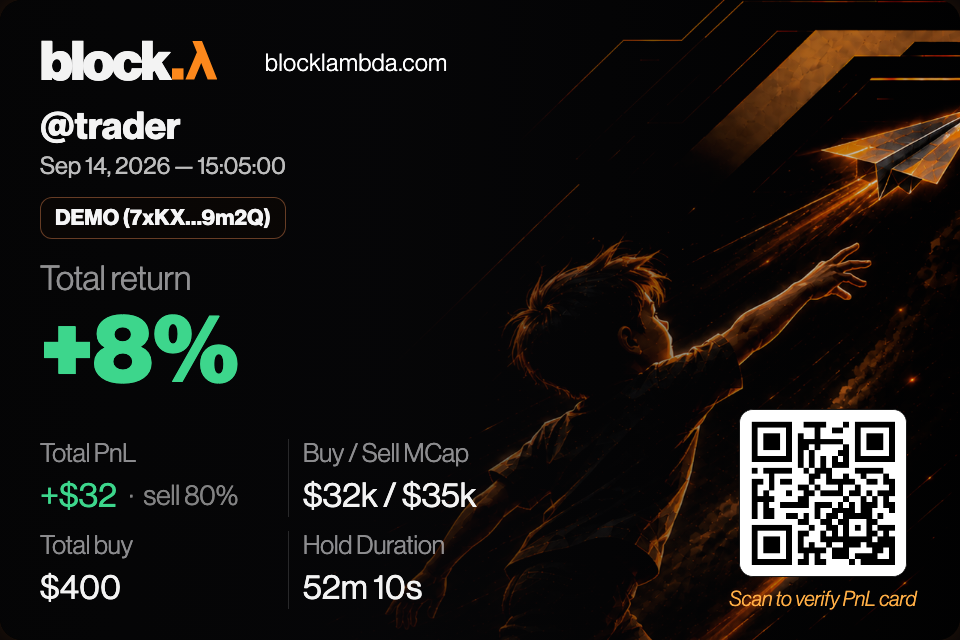
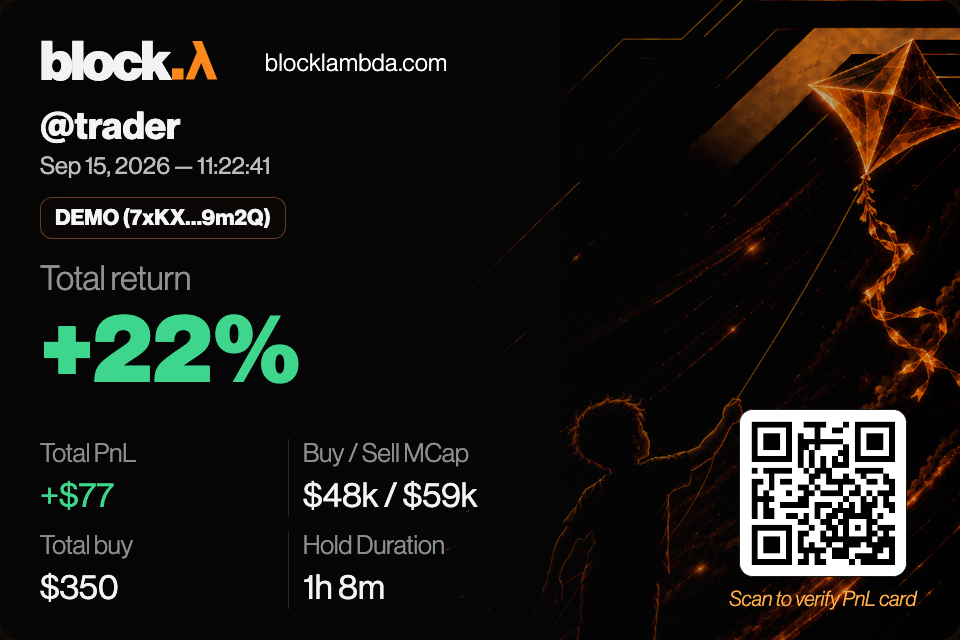
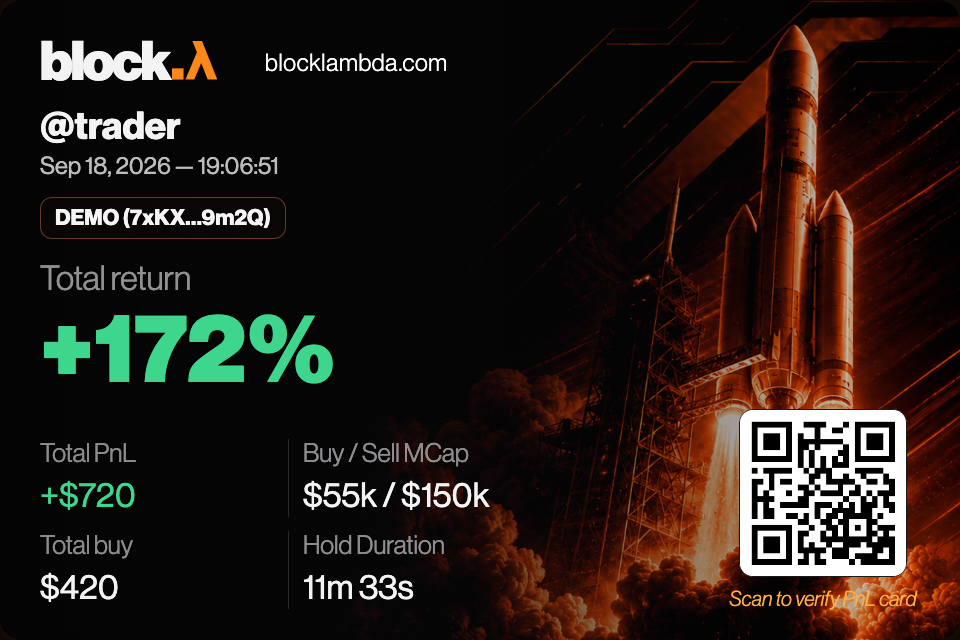
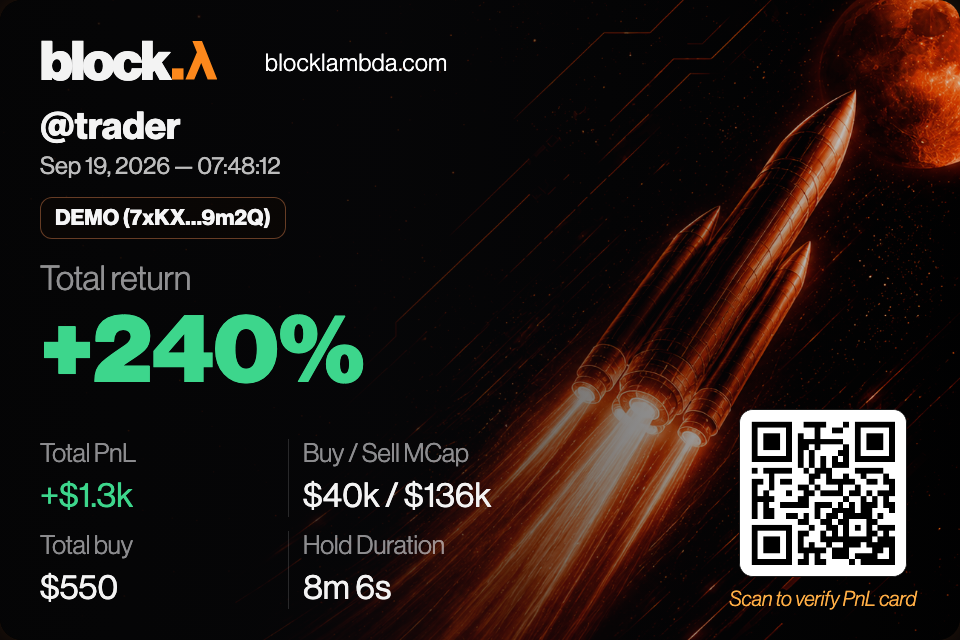
Verification
Every card carries a QR code captioned Scan to verify PnL card. Scanning it (or opening the copied URL) loads a public page that shows the card image and a Card verified mark.
- If the card was generated with a trader identity, the page can say who generated it and when.
- If the card was generated automatically for Discord, the page states that the card followed a client’s realized PnL and that the pseudo is withheld for privacy.
Verification confirms the image matches a real trade recorded by block.λ. It does not publish the token or the wallet when those were hidden at generation time.
Automatic Discord posts
Every positive realized PnL card is posted automatically to the block.λ Discord. Losses are not auto-posted. The Discord copy always uses the anonymous options above.
The post is a community feed of verified wins, not a leaderboard of wallets. Because the card hides token and identity, another member cannot reconstruct your watchlist or your entries from the screenshot.
Delay the Discord post
If you want more confidentiality against anyone correlating a Discord post with your live on-chain activity, enable Delay PnL card post on Discord in Settings.
The post is then delayed by a changing random delay between 1 and 6 hours after the trade is performed. The delay is redrawn for each card, so posts do not land on a fixed offset that an observer could learn.
Enable the delay when you want maximum confidentiality for your strategy. Immediate posts are fine if you do not mind that a win can appear on Discord shortly after it happens on-chain.
Frequently asked questions
Are losing trades posted on Discord?
No. Only sells with a strictly positive realized PnL are auto-posted. You can still generate a card yourself from any realized sell, including a loss — it will use the broke-subway theme.
Can someone tell it was my trade?
Not from a Discord auto-post: there is no pseudo, no wallet, and no token. A card you generate and send yourself may include the token and time if you left that toggle on. Do not share that copy if you need the trade to stay unlinked.
Do manual sells get a card?
Yes, if the sell has a realized PnL. Manual sells appear in the transaction history like any other sell; Share works the same way. Positive manual sells are also eligible for the Discord auto-post.
Can I choose the vehicle?
No. The theme is selected from the total return so cards stay comparable. A higher return always maps to a more advanced vehicle.
Trading bot
Imported wallets
Besides your primary trading wallet (created when you onboard), you can register additional Solana keypairs so each strategy can execute from a different address — for example, to add your axiom / gmgn wallets and execute the strategies on them.
What “imported” means
An imported wallet is a Solana address you add by supplying its private key once. The app derives the public key, checks that the address may be registered to your account, then stores the key material in the same custodial path as your main trading wallet so the bot can sign transactions on your behalf.
Where to manage them
Open your Profile menu (top right) and use Import wallet to add a key, or Imported wallets to see the full list.
The list always shows your trading wallet first (the Blocklambda-generated custodial wallet). Additional rows are wallets you imported yourself.
Import flow
- Private key — Paste a Solana secret key as base58 text or as a JSON byte array (the same formats many wallets export). As soon as the key parses, the form shows the derived public key and loads a live SOL balance preview from the chain.
- Optional name — Up to 40 characters, shown in the list to help you tell wallets apart.
- Import — The button stays disabled until the key is valid, the preview balance loaded successfully, and ownership checks pass. After a successful import, the key field is cleared.
Per-strategy execution wallet
On the Execution page of a strategy (priority fees, Jito tips, slippage), you also choose which wallet signs trades for that strategy. By default the bot uses your trading wallet; you can pick any imported wallet from the same list. Use Manage imported wallets from that section to jump back to the list or import another key without leaving the form.
Security notes
Your responsibility. Never share a wallet’s private key with anyone — not “support,” not moderators, not other traders. Anyone who obtains it can drain the wallet.
Check the real site. Before you paste a private key, confirm your browser’s address bar shows blocklambda.com with HTTPS (the lock icon). If the host name is anything else, or if someone sends you a link by DM claiming it is the app, treat it as a phishing attempt and do not sign in or import keys there.
Treat imported keys like any hot wallet: only import addresses you intend the bot to control, and remove imports you no longer need. Key material is kept server-side for signing and is not exposed again in API responses after import — same custody model as your primary trading wallet (see Trading Setup).
Get Started
Trading Setup
Configure your trading wallets, copy strategies, and automatic position management.
Wallets
Manage the Solana wallets your bot uses to execute trades. block.λ supports multiple wallets per account, each assignable to separate strategies.
Add a wallet
Navigate to Settings → Wallets and click Add wallet. Paste your Solana private key in base58 or JSON array format. The key is encrypted with AES-256 before storage and is never returned in API responses or logs.
Multiple wallets
You can configure multiple wallets and assign each to different strategies. This lets you separate risk exposure — for example, one wallet for copy trading and a separate one for rug sniping with a different SOL limit.
Balance monitoring
The dashboard shows each wallet's current SOL balance in real time. A warning is shown when a wallet's balance drops below your configured minimum reserve.
Strategies
A strategy defines the entry and exit logic applied to every copy trade. You can run multiple strategies in parallel, each pointing to a different wallet and target wallet set.
Preset strategies
- Classic Copy — buy when the target wallet buys, sell when they sell.
- TP/SL Auto-Close — buy on signal, auto-sell at configurable take-profit or stop-loss percentages.
- Timed Exit — buy on signal, auto-sell after a fixed duration regardless of price.
- Trailing Stop — buy on signal, auto-sell when the price drops a configurable % below the running high.
Custom strategies
Contact our team to implement custom signal logic. Examples include: "enter when buy count in last 12s > 60 AND total fees paid in last 60s > $20" or "copy only when wallet has made 3+ profitable trades this week".
Custom strategies are available on Pro and Expert plans.
Take-Profit & Stop-Loss
TP/SL parameters can be set globally (for all positions in a strategy) or overridden per-position directly from the dashboard. Monitoring runs on-chain at sub-second granularity — positions are closed as soon as the condition is detected in the shred stream.
Parameters
| Parameter | Description | Default |
|---|---|---|
take_profit_pct | Sell when position is up this % | None (manual) |
stop_loss_pct | Sell when position is down this % | None (manual) |
trailing_stop_pct | Trail below the running high by this % | None |
max_hold_seconds | Force-close after this many seconds regardless of price | None |
Per-position overrides
Expand any open position row in the dashboard and click Edit TP/SL to set values that override the strategy defaults for that specific position only. Useful when you want to lock in a profit on one position without changing the strategy globally.
TP/SL triggers send a close transaction via the same 6-node broadcast path, ensuring your exit is as fast as your entry.
Trading bot
Notifications
Get in-app and Telegram alerts for everything that happens on your strategies, with the execution detail you need to trust each fill.
Link Telegram and enable alerts
Open Link Telegram account in Settings
In the app, go to Settings and choose Link Telegram account to start the linking flow.
Sign in to Telegram in the web dialog
When the browser dialog opens, sign in to Telegram (or create an account) so the bot can be connected to the correct profile.
Enable notifications for the bot on your phone
On your smartphone, open the Telegram app and make sure notifications are on for the app. Add or open a chat with @blocklambda_bot and allow alerts, so you receive messages from the block.λ bot even when the app is in the background.
What you will receive
After linking, messages cover every type of event tied to your strategy — for example: trades, errors, and strategy start / stop, pause / resume of buys (and similar lifecycle updates). Each notification is built to be actionable, with full context on execution, including where relevant:
- Slippage — how far the fill moved versus expectations.
- Target price — the reference price (e.g. from the lead wallet or the intended level).
- Copied (fill) price — the price at which your copy was executed on-chain.
Token identity, size, and links to on-chain data (e.g. Solscan) are included as appropriate to the event type.
In-app notification preferences
Open Settings → Notifications to choose, per event group, whether the alert is enabled and which sound plays. You can preview a sound from the same page.
- Buy, Sell, AFTS follow — can be enabled or disabled independently.
- Strategy status (start, stop, pause, resume) — always on; you can still change its sound.
- Default info / success / warning / error — fallback sounds for other events of that severity. These groups cannot be turned off.
If a type is set to the inherited default, it uses the sound of its severity group. Changing a default group updates every type that still inherits from it.
Product
Release notes
Notable app updates, grouped by version and release date.
v2.3 — 25 September 2026
Custom SL/TP pricing for more realistic backtests, a listen-only trading mode, notifications with direct links, and a faster non-Laser send path.
Backtests & Tools
- Feature Custom SL/TP pricing — Choose how stop-loss and take-profit prices are taken: block 0 — last, block 0 — worse, or block 0/1 worse. Backtests stay closer to a real fill.
- Feature Backtest name and description — Give a backtest a name and a description so you can find it again.
- Feature RPC credit discounts — Larger RPC credit purchases are discounted, up to −40% above $300.
Trading algo
- Feature “Do not buy” mode — Create strategies that only notify you when copied wallets buy. Select do not buy in the buy options. Useful when you want to be informed of a wallet’s buys without executing a trade.
Blocklambda — Website
- Feature Links in notifications — Every notification now links to wallets and transactions (Solscan), tokens (GMGN), and the strategy dashboard. The links are in in-app notifications and in Telegram notifications.
- Feature Strategy list — The list UI was redesigned, including fold and expand for the details. A strategy you expand stays expanded after you reload the page.
- Feature Paginated lists — The backtest list loads much faster and is paginated. The same applies to the TP/SL optimizer list and the TRS list.
- Feature Delay Success PnL cards on Discord — To keep a success card from being tied back to a token, you can delay posts in 💰・member-success. Each card is delayed by a random time between 1 and 6 hours.
Execution & fixes
- Feature Astralane routing — Non-Laser transactions tipped at 0.001 SOL or more are now routed through Astralane, measured faster than Helius Sender (ping <1 ms versus 2 ms). Laser mode is still much faster and remains the option to use when execution is critical.
- Bug Various bug fixes and performance improvements.
Faster landing path, fill-price and sizing controls, AFTS watchlist discipline, and terminal workflows for analysis and notifications.
Execution
- Feature Laser mode — Optional low-latency send path: dedicated UDP deshredder that does not wait for a full shred set (hundreds of microseconds saved), up to 10 relays and 8 servers, shred intake in Frankfurt, Amsterdam, New York, Tokyo, Dublin, and London, plus automatic extra priority fees from Solana congestion. Built to land ahead of Tradewiz Turbo, fproject, and most other public bots. Platform fees +0.5% and +$0.25 on the per-tx minimum. See Laser mode.
- Feature Anonymous fees vault — Route platform fees to a private vault dedicated to your account, then recovered off the public fee-flow path, so wallet trackers cannot map your strategies from a shared vault. +0.25% and +$0.08 on the minimum; stacks with Laser mode. See Anonymous fees vault.
- Feature Buy max slippage in k$ MC — Cap the fill market cap in k$ instead of a percent above the quote. This is a fill-price guard, not the Min/Max MC entry filter. See Buy max slippage in k$ MC.
Strategy controls
- Feature Rug sniping / Auto-Pause at Threshold — When live margin reaches a USD profit threshold, the strategy pauses automatically (no new buys; sells and AFTS keep running). Use it after a runner, before a rugger farms you with failed launches. See Auto-Pause at Threshold.
- Feature Reset margin — On a running strategy with max margin, zero the current margin from the summary without stopping or restarting. Later drawdown is measured from that point. See Reset margin.
- Feature Defer buy — Wait X seconds after a buy signal, then re-check market cap, margin, max buys per token, and the other entry filters before placing the order. See Defer buy.
- Feature Advanced sizing — Map copied-wallet buy size through a curve: wallet min/max bounds, semi-proportional spread, optional S-curve, and caps on your own size. See Advanced function (Pro).
- Feature Copy % of wallet position — New wallet-copy sell mode: sell the same fraction of your position as the followed wallet sold of theirs, so a 50% copy stays 50% after he sells half. See When wallet sells.
Rug sniping / AFTS
- Feature Front-run sell / wallet filters — Count either every token transfer on the mint, or only transfers that involve a list of wallets (payer, receiver, or both). See Wallet filters.
- Feature AFTS watchlist limits — Per-strategy caps on watchlist size and successful follows per rolling hour. Limits depend on your plan (Discover / Sniper / Pro). See Limits.
- Feature AFTS / Wallet always kept — Pin mother wallets so they stay on the watchlist after they send a qualifying transfer, while disposable bridges still rotate out. See Wallet always kept.
- Feature AFTS / Rm source: payer or receiver post-transfer — Remove the source only when the payer’s and/or receiver’s SOL balance after the transfer sits in an optional band — so the watchlist does not fill on half-rotations. See Rm source conditions.
- Feature AFTS / Restrict bridge emitters — Allow-list which followed wallets may emit new follows. Other watched wallets stay copied but cannot expand the list — one hop after a CEX or mixer, not an infinite chain. See Restrict bridge emitters.
Interface
- Feature Notification preferences — In Settings, enable or disable Buy, Sell, and AFTS-follow alerts, and choose a sound per type (strategy-status and default severity groups stay on). See In-app notification preferences.
- Feature Search bar in the strategy list — Filter the list by strategy name or
#id, in the UI only (no extra server call). - Feature Volume control in the top menu bar — The speaker icon next to notifications opens a slider for in-app notification volume; the setting is saved with your other preferences.
- Feature Backtest from TRS — On a Transfer Replay result, a control above the wallet list opens a new backtest pre-filled with those wallets.
- Feature JSON wallet lists — Export or import a JSON array of addresses anywhere the app asks for wallets (TRS, backtests, strategy form, AFTS lists). Duplicates are skipped on import.
v1.4 — 20 June 2026
In-app analysis billing, a first-class backtest workflow, and a chain indexer that makes historical scans fast enough to use in session.
- Feature RPC credits and backtest — A USD balance on your account pays for analysis: backtests, Transfer Replay (TRS / OTA), and replay-RPC. Top up in the app, or use the credits included with your plan. The balance is USD-denominated and is not refundable if unused.
- Feature Indexer — A dedicated indexer ingests the chain in real time and indexes buy/sell activity, which materially speeds up backtests and Transfer Replay versus fetching history on demand.
- Bug Various bug fixes and small performance improvements.
v1.3 — 3 June 2026
Live strategy controls, rug-sniping defences, trailing exits, and separated buy/sell execution fees — plus strategy naming and list ordering.
Copy trading
- Feature Trailing stop loss — Add TSL to trail the highest price each lot has seen since entry, so exits can lock in gains after a pump without selling at a fixed level from entry. See Trailing SL.
- Feature Separate buy and sell execution fees — Set different priority fees and Jito tips for buy transactions versus sell transactions in the strategy form Execution section.
- Feature Strategy name & description — Label strategies in the form for your own reference; these fields do not change execution logic. See General.
- Feature Reorder strategies — Drag the move handle on the strategy list to set the order strategies appear in your terminal.
- Feature Pause / Resume strategy — Pause a strategy when you want sells to keep running and AFTS to keep following wallets (rug sniping), while blocking all new buys. See Pause and Resume buys.
- Feature Force stop — To stop a strategy on block.λ, every position must be closed. If you sold outside the terminal, you can no longer sell from the app — you can force stop the strategy instead if you fully understand the risks. See Force stop.
Specific to rug sniping
- Feature Rug sniping / Front-run sell — Exit before a rugger dumps when the bot detects an abnormal burst of token transfers in a short window. Configure the time window, minimum transaction count, and minimum total tokens moved. See the Front-run sell documentation.
- Feature Rug sniping / TRS (Transfer Replay Service) — Find a rugger again, automatically analyze patterns you could never decode by hand, and capture every buy and every token creation from thousands of wallets in the same scheme — in about 2 minutes. See the documentation.
Bug fixes
- Bug AFTS replay — Reported 3 June, fixed: replay did not follow a wallet due to a commitment-level mismatch (was
finalized, should have beenconfirmed). - Bug Onboarding: SMS — Reported 2 June, fixed: SMS could not be sent to non-French phone numbers.
- Bug Onboarding: referral — Reported 2 June, fixed: prefilling a referral username caused an internal error.
- Bug PnL cards on Discord — Seen 20 May, fixed: some PnL cards were not posted automatically to Discord when token supply was not yet available for very fresh mints.
No bugs on the trading bot were reported.
v1.2 — 18 May 2026
Rug-sniping workflow upgrades (AFTS overhaul, saved rug filters, buy limits), new long-term subscription tiers, and an official referral program — plus faster rug discovery and upstream API / protocol alignment.
- Feature Rug sniping: Auto-Follow Transfer System (AFTS) — Fully reviewed. Every option is now exposed in the strategy form, and we added an RPC replay path so ultra-fast ruggers who hop from wallet to wallet in tight bursts are still evaluated against your rules. See the Auto-Follow Transfer System documentation.
- Feature Rug sniping: Saved filter presets — Save filter configurations as named presets and switch between them quickly from a dedicated menu.
- Feature Buy options: max buys per token — Configure a maximum number of buys allowed per token from the buy options.
- Feature Pricing: 3-month and 1-year plans — New billing periods with 30% and 50% discounts versus monthly pricing.
- Feature Official referral program — In-app referral codes and shareable links; see the Referral program documentation.
- Bug Improved performance of rug live analysis — the rug list now loads roughly 2–3× faster.
- Bug Integrated GMGN API changes after a major upstream update.
- Bug Pump.fun — Updated buy/sell instruction builders for the new account layout on Pump.fun trades.
v1.1 — 12 May 2026
Wallet import with per-strategy assignment, rug list filtering on all tracked metrics, full support for custom on-demand strategies with live terminal stats, shareable PnL cards verifiable by QR code, and Discord account linking — plus a few bug fixes. The bot had been stable for two days with no new reports at release time.
- Feature Wallet import & per-strategy assignment — Import your own wallets and assign a specific wallet to each strategy. Enables multi-wallet buying on the same token by running multiple strategies each bound to a different wallet. Import from Profile (top-right) → Import wallet; assign from the strategy's Edit → Execution section.
- Feature Rug list filters — Filter the rug list by any tracked metric — ATH, bundle rate, market ratio, and time to ATH — in addition to sorting by column.
- Feature PnL cards — Generate and share cards from transaction history using Share next to any realized PnL. Each card includes QR code verification so anyone can confirm trade authenticity. See PnL cards.
- Feature PnL card privacy — Privacy Mode hides the traded token and the trade date on shared cards so others cannot reverse-engineer your strategy from a screenshot.
- Feature PnL card themes — Designs use air-transport motifs: the higher your return, the more advanced the vehicle — from gliders to rockets.
- Feature Custom on-demand strategies — Request fully custom strategies from the Blocklambda dev team. They run inside the terminal with multiple independent instances, custom parameters per instance, and separate PnL tracking, execution statistics, and position monitoring.
- Feature Discord integration — Link Discord during onboarding; linked accounts receive the Blocklambda Member role for full access to the server. Manage the connection anytime from Settings.
- Feature Pump.fun launchpad updates — Support for the latest Pump.fun launchpad changes, including the PumpSwap migration path and creator royalty updates. See Pump.fun Updates 2026 for more detail.
- Feature Official Discord — The official Blocklambda Discord server is now live.
- Bug Fixed float precision drift affecting custom sell executions (reported by Leo).
No other bugs were reported in this release.
Focus: self-serve strategy management, richer copy-trading controls, and critical strategy/position reliability fixes.
- Feature Added an in-app strategy form: you can now create, edit, and delete strategies directly in the app, without going through the dev team.
- Feature Added copy-sell automation with three modes: position percentage, copied transaction percentage, or fixed amount.
- Feature Added proportional copy-buy sizing.
- Feature Added multi TP/SL per lot — each buy creates its own lot with independent TP/SL tracking. How it works →
- Feature Added fee-tier visibility in the strategy summary.
- Bug Fixed a cross-strategy position display issue where positions from another strategy (same user) could appear on the wrong strategy page. Each strategy page now shows only its own positions.
- Bug Prevented strategy edits while a strategy is still running, so configuration changes are only allowed once the strategy is fully stopped.
- Bug Fixed a dust-position deadlock: some tiny token remainders (MtM below $0.01) could hide sell actions while still blocking strategy stop. Strategies can now be stopped cleanly even when dust remains.
v0.2 — 27 Apr 2026
Focus: max-margin risk controls, margin visibility, and fixes for recent pump.fun migration changes.
- Bug Updated the PumpSwap (Pump AMM) buy instruction builder after the protocol began requiring two extra accounts for coin creator fees (
coin_creator_vault_ata,coin_creator_vault_authority). See Pump.fun breaking fee recipient upgrade in pump-public-docs. - Feature Added the max-margin system to the algorithm, including a dedicated margin chart and notifications when the configured margin threshold is hit.
- Bug Fixed an issue with tokens that changed programs during migration from pump.fun to AMM.
v0.1 — 23 Apr 2026
Focus: notifications, Telegram account controls, and a rebuilt strategy P&L experience driven by live strategy stats.
- Feature Notifications — Full notification system: in-app panel with separate new and read items, a layout tuned for mobile, and delivery to Telegram for supported events.
- Feature Telegram in Settings — Link or unlink your Telegram account from the dashboard so alerts go to the account you intend.
- Feature Strategy PnL chart — Rebuilt on the global strategy stats event stream, including realized and unrealized P&L, with series both including and excluding fees.
Product
Scheduled for next major release
Planned features for the next major version.
Target date
Internal target only — the date can shift if we need more QA or a dependency lands late. Final confirmation is always announced on Discord and Telegram.
Features
- Feature Smarter error notifications — The app will separate errors you can fix yourself (slippage too tight, insufficient funds, and similar) from real bot bugs that need an engineering fix. User-actionable errors will be clearer in the notification panel.
- Feature Flexible OTP verification — SMS OTP will no longer be mandatory. If you skip SMS verification, linking Telegram becomes required instead.
- Feature Better display of imported wallets — Richer views for every imported wallet, including realized P&L charts with and without fees.
- Feature TP/SL on wallet-copy sells — Add TP/SL at the same time as copying the wallet’s sells (today it is one or the other, not both).
- Feature Min / max token age on buy — Filter copy buys by how old the token is (minimum and maximum age since creation).
- Feature Playground strategy (manual buys) — A dedicated strategy to buy tokens manually at lower cost: block.λ fees are about 2× cheaper than GMGN, Axiom, Bloom, Tradewiz, and similar tools. Members will be able to buy any token on the platform at lower cost.
Product
Referral program
Share block.λ with a personal link and earn a commission when referred users subscribe.
Overview
After you opt in from Profile → Referral in the app, the product generates a short referral code and two ready-to-share URLs: one for the copy trading landing page and one for rug sniping (/rugs). Each URL includes a ?ref=… query so new visitors are attributed to you when they sign up and complete onboarding.
In the app: Open Referral.
Reward tiers
Your account is assigned one of three program levels (shown on the Referral page). The in-app copy matches what you see there:
- Member — 25% of the first subscription payment from each user who signs up through your link.
- Partner — 25% on every subscription payment, including renewals, for the full lifetime of each referred subscriber.
- Custom partnership — rates and eligible products are agreed with the team; use support / Discord to clarify your deal.
Active community contributors (moderation, content, KOL work) can apply for a higher tier via the partnership contact in the app.
Payouts
Eligible referral commissions appear in the Referred payments table on the same page. Payouts are sent manually on a ~24h cadence to your block.λ trading wallet; each row eventually shows Paid with an on-chain transfer reference, or Pending payment while it is queued.
Referral attribution is finalized during onboarding (invite link or referral step at signup). Terms and edge cases beyond this summary are governed by your account agreement and in-product messaging at signup.
Developer
Get started
Create an API token in the app, then call block.λ from your own scripts and bots with Authorization: Bearer.
In the app: Open Developer.
Create an API token
Open Developer
Open the Profile menu (top right) and choose Developer. The page lists every token on your account. Click New token.
Name
Give it a unique name on your account (required, at most 255 characters) — for example local scripts or prod bot.
Allowed IP (optional)
Leave empty to accept requests from any IP. Or set a single IPv4 or IPv6 address so only that host can use the key.
Create
The token is generated immediately and expires after one year. In the list it stays hidden; use the eye icon to reveal it and the copy icon to copy it.
Keep your API key secret. Anyone who has it can send orders on your behalf. If you think a key is compromised, revoke it and create a new one.
Edit or revoke an API token
In the token list, the pencil edits the name and allowed IP (the secret token and expiry do not change). The trash icon revokes the key immediately after you confirm. Create a replacement at any time if a key leaked or you no longer need that integration.
Send requests with your API token
Developer routes are not authenticated with your session cookie. Pass the token on every request:
POST /developer/... HTTP/1.1
Host: api.blocklambda.com
Authorization: Bearer YOUR_API_TOKEN
Content-Type: application/json
Example (replace the host if you use a different environment):
curl https://api.blocklambda.com/developer/... \
  -H "Authorization: Bearer YOUR_API_TOKEN" \
  -H "Content-Type: application/json"
A missing, unknown, or revoked token returns 401 ACCESS_DENIED.
Next steps
Developer
Buy / sell API
Market buy and sell on a running strategy, from your scripts.
Buy
Places a market buy on a running strategy, on that strategy’s execution wallet. Omitted slippage and fees use the strategy execution settings.
URL parameters
Strategy #id. Positive integer. Must be yours and running.
Request body
Token mint to buy.
Buy size in USD. Greater than 0.
Must be sent with slippageUnit. PCT: percent of quoted SOL. K_USD: k$ max price (30 = 30k$).
PCT or K_USD. Required when slippage is set.
Priority fee in SOL. Omit to use the strategy default.
Jito / Sender tip in SOL. At least 0.00025 if set. Omit to use the strategy default.
{
  "tokenAddr": "TokenMintAddressHere",
  "amountUsd": 50
}
Responses
-
200
Empty body. Buy queued — not an on-chain receipt: the buy will be executed as soon as possible when the bot processes the operation. Stream your wallet by WebSocket or polling RPC to know if the buy operation was successful on-chain.
-
400
ILLEGAL_PARAMETER— badstrategyId, emptytokenAddr,amountUsd≤ 0, incomplete slippage pair, invalidslippageUnit,tipsSolbelow minimum, or invalid JSON. -
403
OPERATION_DENIED— strategy is not yours. -
404
RESOURCE_NOT_FOUND— no strategy, or no running session.
Sell
Closes all or part of an open position on a running strategy.
URL parameters
Strategy #id. Positive integer. Must own the position.
Request body
Token address that you previously bought in this strategy.
Tokens to sell. Greater than 0, at most the position balance (same units as the terminal).
{
  "tokenAddr": "TokenMintAddressHere",
  "tokenAmount": 1500000
}
Responses
-
200
Empty body. Sell queued — not an on-chain receipt: the sell will be executed as soon as possible when the bot processes the operation. Stream your wallet by WebSocket or polling RPC to know if the sell operation was successful on-chain.
-
400
ILLEGAL_PARAMETER— badstrategyId, emptytokenAddr,tokenAmount≤ 0 or above balance, or invalid JSON. -
403
OPERATION_DENIED— strategy is not yours. -
404
RESOURCE_NOT_FOUND— no strategy, no running session, or no position fortokenAddr.
Developer
Start / stop / modify
Start or stop a strategy, or replace its full configuration, from your scripts. Authenticate with Authorization: Bearer.
Start
Starts the strategy, same as Start in the app. The bot begins watching followed wallets and can open new buys. You need an active plan. Send no request body.
URL parameters
Strategy #id. Positive integer. Must be yours and currently stopped.
Responses
-
200
Empty body. The strategy is now running.
-
400
OPERATION_DENIED— already started.ILLEGAL_PARAMETER— badstrategyId. -
403
OPERATION_DENIED— strategy is not yours.NO_ACTIVE_LICENSE— no valid license. -
404
RESOURCE_NOT_FOUND— no strategy.
Stop
Stops the strategy, same as Stop in the app. You must have no open positions — sell first if anything is still open. Send no request body.
URL parameters
Strategy #id. Positive integer. Must be yours and currently running.
Responses
-
200
Empty body. The strategy is now stopped.
-
400
OPERATION_DENIED— already stopped.ILLEGAL_PARAMETER— badstrategyId. -
403
OPERATION_DENIED— strategy is not yours.STRATEGY_STOP_OPEN_POSITIONS— at least one position is still open. -
404
RESOURCE_NOT_FOUND— no strategy.
Modify
Replaces the whole strategy configuration. The strategy must be stopped. Optional fields you omit are cleared. strategyId is taken from the URL.
URL parameters
Strategy #id. Positive integer. Must be yours and stopped.
Request body
Strategy label. At most 28 characters.
Notes. At most 128 characters.
Buy, sell, execution, and margin. See fields below.
Wallets to follow. See fields below. type is FixedWalletsFollowStrategy, LiveFollowStrategy, or CustomStrategyInstanceFollow.
tradingStrategy
Must be TPSLSnipingTS.
BUY — copy a followed wallet’s buy. CREATE_TOKEN — buy on token creation (rug plan required).
Fixed buy size, greater than 0. Send together with sizeUnit. Exactly one sizing mode: fixedSize+sizeUnit, or percentSize, or relativeToBaseSizing.
USD or SOL. Required with fixedSize.
Buy as a percent of the followed wallet’s buy, greater than 0. Example: 50 buys half of their quote size.
Advanced sizing curve. See fields below. Mutually exclusive with fixedSize and percentSize.
Minimum token market cap at signal time, in USD. Must be greater than 1000. Example: 50000 = $50k.
Maximum token market cap at signal time, in USD. Must be greater than 1000. If both MC bounds are set, max must be greater than min.
Do not buy before this many seconds after token creation. ≥ 0.
Do not buy after this many seconds after token creation. ≥ 0. If both are set, max must be greater than min.
Seconds to wait after the buy signal, then re-check every entry filter before sending. ≥ 0. Omit for no delay.
Non-empty. Allowed values: pump.fun, pump.fun AMM.
Max buy transactions per mint during the running session. Positive integer. Omit for no limit. Resets when you start the strategy again.
Auto-pause new buys when margin (USD) goes above this amount. Greater than 0. Omit to disable.
Fees, slippage, and execution wallet. See fields below.
TP / SL / TSL legs. Empty array is allowed. Sum of size.value per side (TP, SL, TSL) cannot exceed 100.
Sell when a followed wallet sells. Modes and examples: When wallet sells.
Front-run sell on a burst of token transfers. See fields below. When set, sell-side fees in executionRequest are required and must be at least 0.001 SOL each.
Stop new buys when negative margin hits this USD cap. See fields below.
relativeToBaseSizing
Your buy is a function of the followed wallet’s buy. Both notional bases must use the same unit.
Your reference buy size when the wallet buys baseCopied. Greater than 0.
USD or SOL. Must equal baseCopiedUnit.
Followed-wallet buy size that defines ratio 1. Greater than 0.
USD or SOL. Must equal baseNotionalUnit.
How strongly your size follows the wallet ratio. ≥ 0. 0 = always baseNotional. 1 = linear with the wallet ratio. Above 1 amplifies.
S-curve distortion, from 0 (straight) to 1 (full S-curve).
Skip the buy if the wallet’s buy is below this (same unit as the bases). ≥ 0.
Skip the buy if the wallet’s buy is above this. ≥ 0. If both bounds are set, max must be ≥ min.
Floor on your buy after sizing. ≥ 0.
Ceiling on your buy after sizing. ≥ 0. If both are set, max must be ≥ min.
executionRequest
Exactly one of maxSlippagePct or maxSlippageMc is required.
Buy priority fee in SOL. At least 0.0001.
Buy Jito / Sender tip in SOL. At least 0.00025.
Sell priority fee in SOL. At least 0.0001 if set. Omit to reuse buy priorityFees. Required and at least 0.001 when frontSell is set.
Sell Jito / Sender tip in SOL. At least 0.00025 if set. Omit to reuse buy jitoTips. Required and at least 0.001 when frontSell is set.
Max buy slippage as a percent of quoted SOL. Greater than 0. Do not send together with maxSlippageMc.
Max fill market cap in USD. At least 1000. Example: 80000 rejects a fill above $80k. Do not send together with maxSlippagePct.
Execution wallet. Must be a valid Solana wallet you own (platform trading wallet or an imported wallet).
Route platform fees through your private vault. Defaults to false.
Laser mode (low-latency send). Defaults to false.
If buyMode is CREATE_TOKEN and fastMode is true: you must send maxSlippageMc (not percent slippage), and you cannot send minMcUsd, maxMcUsd, maxBuyPerToken, snipeDelay, minSecAfterCreation, or maxSecAfterCreation.
sellStrategies[]
Each item is one take-profit, stop-loss, or trailing stop-loss leg. size.value is a percent of the original buy lot, not of the remaining balance.
TP, SL, or TSL.
PERCENT — move vs entry (or vs last high for TSL). LEVEL_MC_USD — absolute market-cap target in USD.
For PERCENT: magnitude, greater than 0 (example 30 = 30%). For SL / TSL percent, must be less than 100. For LEVEL_MC_USD: USD market cap, greater than 1 (example 50000 = $50k).
CURR — mark against the current curve. NEXT — mark against the next trade on the curve.
How much of the lot to sell when this leg fires.
Percent of the original lot. Greater than 0, at most 100.
Must be PERCENT_LOT_ENTRY_SIZE.
copyWalletSellStrategy
Optional. When set, the strategy sells when a followed wallet sells a token you hold. Worked examples for every mode: When wallet sells.
WalletCopySell.
How to size your sell. Same names as the form.
FIXED_AMOUNT— Fixed amount. Sell a fixed USD or SOL amount each time. NeedsfixedSize+sizeUnit.POSITION_PCT— % of your position. Sell a % of your position, without taking his sell amount into account. NeedspercentSize.COPIED_WALLET_TX_PCT— % of copied tx $ sold. Sell a % of his transaction in $. If the amount is larger than your position, your whole position is sold. NeedspercentSize.RELATIVE_TO_COPIED_POSITION— Copy % of wallet position. His sell as a percentage of his position, applied to yours. No extra field.
Required for POSITION_PCT and COPIED_WALLET_TX_PCT. Greater than 0. Omit for RELATIVE_TO_COPIED_POSITION.
Required for FIXED_AMOUNT. Greater than 0.
Required for FIXED_AMOUNT. USD or SOL.
frontSell
Lookback window in seconds. Greater than 0.
Minimum counted token transfers in the window. Integer greater than 0.
Minimum token amount on a transfer for it to count. Greater than 0, at most 1000000000.
Percent of your position to sell when the trigger fires. Greater than 0, at most 100.
If omitted, every outbound token transfer counts. If set, must be non-empty: only transfers matching a filter count.
Solana wallet that must appear on the transfer.
receiver, payer, or both.
maxMarginConfig
Cap in USD. Greater than 0.
Which PnL drives the cap: realized, total_pnl, or quote_out.
followStrategy
FixedWalletsFollowStrategy
FixedWalletsFollowStrategy.
Solana wallets to copy. At least one, at most 200, no duplicates. Each must be a real wallet address (not a mint, token account, or program).
LiveFollowStrategy
Watch source wallets and follow destinations of matching SOL transfers. Requires a rug plan. Rates are ratios from 0 to 1 (0.2 = 20%).
LiveFollowStrategy.
Source wallets. At least one, no duplicates. Valid Solana wallets.
SOL transfer bands. Empty array = no band filter. Each item: optional minSol and/or maxSol.
Minimum transfer size in SOL for this band.
Maximum transfer size in SOL for this band.
Minimum receiver-side rate, 0–1.
Maximum outflow / min-balance rate, 0–1.
Source wallet becomes a final followed wallet after a matching transfer. Defaults to true.
Wallets that stay on the watchlist. Each must also appear in wallets. No duplicates. Defaults to [].
Wallets treated as bridges only (they emit follows, they are not kept as final). If set, must be non-empty, no duplicates, valid wallets.
Minimum source wallet SOL balance after the transfer. ≥ 0.
Maximum source wallet SOL balance after the transfer. ≥ 0. If both source bounds are set, max must be ≥ min.
Minimum destination wallet SOL balance after the transfer. ≥ 0.
Maximum destination wallet SOL balance after the transfer. ≥ 0, at most 10000. Defaults to 10000. If both dest bounds are set, max must be ≥ min.
Minimum SOL left on the source-as-final payer after the transfer. ≥ 0.
Maximum SOL left on the source-as-final payer after the transfer. ≥ 0. If both are set, max must be ≥ min.
Minimum SOL on the source-as-final receiver after the transfer. ≥ 0.
Maximum SOL on the source-as-final receiver after the transfer. ≥ 0. If both are set, max must be ≥ min.
CustomStrategyInstanceFollow
CustomStrategyInstanceFollow. No other fields.
{
  "name": "Copy KOL",
  "description": "Follow one wallet",
  "tradingStrategy": {
    "type": "TPSLSnipingTS",
    "buyMode": "BUY",
    "fixedSize": 50,
    "sizeUnit": "USD",
    "minMcUsd": 5000,
    "maxMcUsd": 1600000,
    "tokenPrograms": ["pump.fun", "pump.fun AMM"],
    "maxBuyPerToken": 1,
    "sellStrategies": [
      {
        "side": "TP",
        "type": "PERCENT",
        "value": 40,
        "mtmMode": "CURR",
        "size": { "value": 100, "unit": "PERCENT_LOT_ENTRY_SIZE" }
      }
    ],
    "copyWalletSellStrategy": {
      "type": "WalletCopySell",
      "mode": "POSITION_PCT",
      "percentSize": 100
    },
    "executionRequest": {
      "priorityFees": 0.001,
      "jitoTips": 0.00025,
      "maxSlippagePct": 18,
      "walletAddress": "YourExecWalletAddressHere",
      "customFeesVault": false,
      "fastMode": false
    }
  },
  "followStrategy": {
    "type": "FixedWalletsFollowStrategy",
    "wallets": ["CopiedWalletAddressHere"]
  }
}
Responses
-
200
{ "strategyId": 392 } -
400
STRATEGY_MUST_STOP_TO_UPDATE— still running.ILLEGAL_PARAMETER— invalid JSON or strategy fields. -
403
OPERATION_DENIED— strategy is not yours.ACCESS_DENIED— execution wallet is not yours, or rug-only options without a rug plan.NO_ACTIVE_LICENSE— no valid license. -
404
RESOURCE_NOT_FOUND— no strategy, or no trading wallet on the account.